Lately, Google Chrome has been denying access to the WebGL API set on older PCs (before 2013). I’ve read on some forums that there are a myriad of methods to force WebGL back on. But the thing is, none of them -even remotely- work on the latest (Dev_Version68/Stable_Version63) versions of Chrome. I found my own method to get WebGL to work (well, to-work so much as forcing it) on PCs with older hardware. I’ll share that with you in this post.
First of all, let’s get some food into our brains as to what WebGL is, and more importantly, why it’s disabled. WebGL is the equilent of OpenGL on a browser. Likewise; WebGL 2.0 is OpenGL 2.0. Moving onto why it’s not working; the reason can be one of the two: either your PC is so old that it really doesn’t support WebGL (I am not fixing that), or previous versions of Chrome worked well until the latest version (I can help you on that). The latter lies in Google removing support for older GPUs ‘cause there are better ones coming out (the way of life bro!).
That’s that done. First, establish whether or not whether your system actually supports WebGL by going onto this link. If you don’t see a cube, then sadly I cannot help you. If you do see a revolving cube, then cheers! But all is not fixed for even if you see that cube, our friend Chrome might not allow you to use WebGL (in Chrome Apps etc.).
Do please note that the new problem with old Intel drivers not supporting WebGL2 cannot be fixed; until Google decides to patch that, that is!
Now, there are quite a few methods to fix this issue. One: you may downgrade to a Chrome version that worked well on your PC (This is recommended if you want to run Chromium experiments). Two: downgrade to an older version and then upgrade from that to the latest version (this worked well in quite a few cases, especially on older hardware like Core Solo and Pentium D). Three: try some tweaks in “chrome:flags” (like “Force WebGL 2.0”, or “Use Multiple Raster Threads” etc.) but all that is at your own risk. Four: you can upgrade your hardware so that Chrome will support WebGL. Five: -my personal method to get apps working without WebGL- a combination of all and a touch of me! I’ll elaborate on this in the next paragraph.
My personal method is for when you want to get apps that need WebGL working (Chrome Apps, mind you). It’ll require some elbow grease but all in the name of victory, eh? First, you will need CRX versions of the apps you want and extracted into a folder (Read how to HERE). Once you’ve gotten that, you can continue.
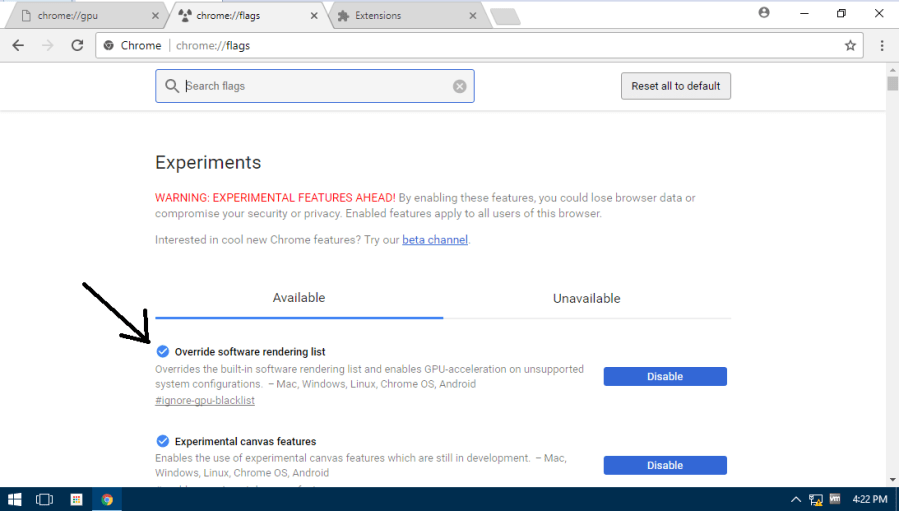
Open up Chrome and enter “chrome:flags” (no quotes) in the OmniBOX. Then enable the first (–ignore-gpu-blacklist) switch.
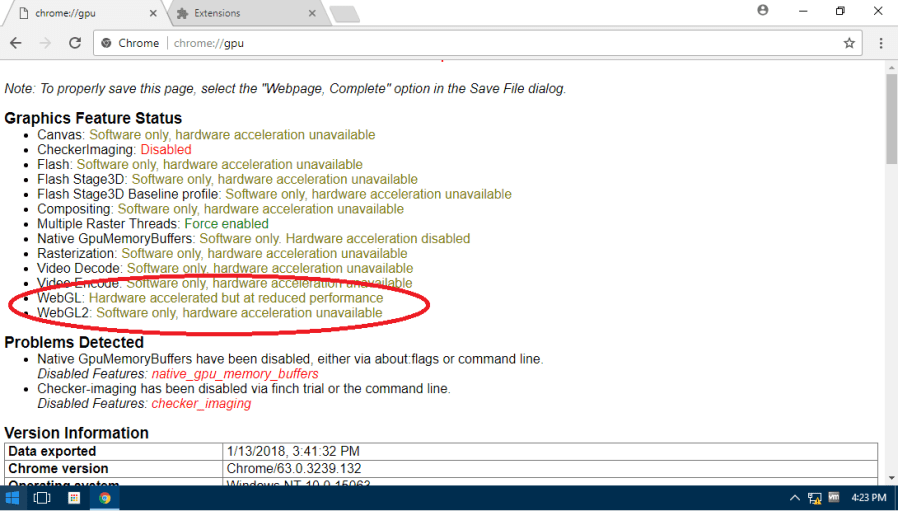
Then check on “chrome:gpu” (no quotes) for either “WebGL: Hardware Accelerated” or “WebGL: Hardware Accelerated, but at reduced performance” or “WebGL: Software Only” or “WebGL: Unavailable”. If you got one of the latter two, I can’t help you. But if you got one of the first two, read-on.
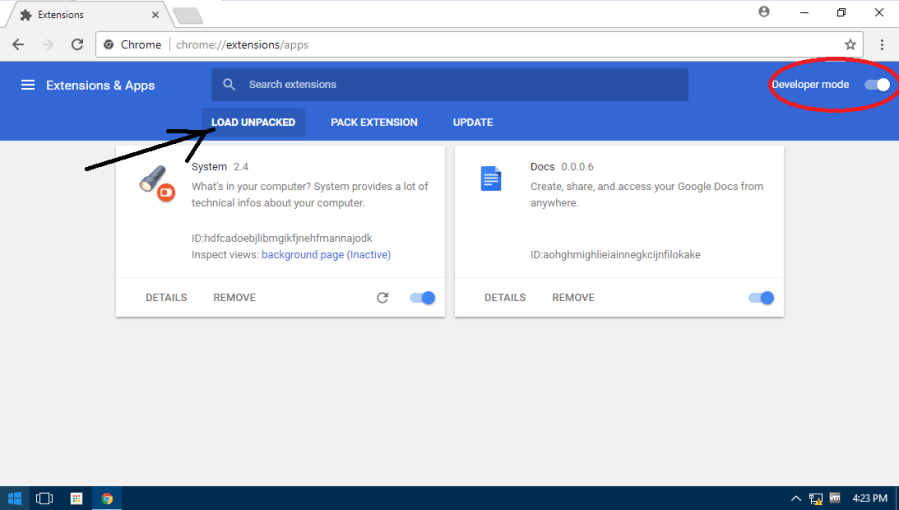
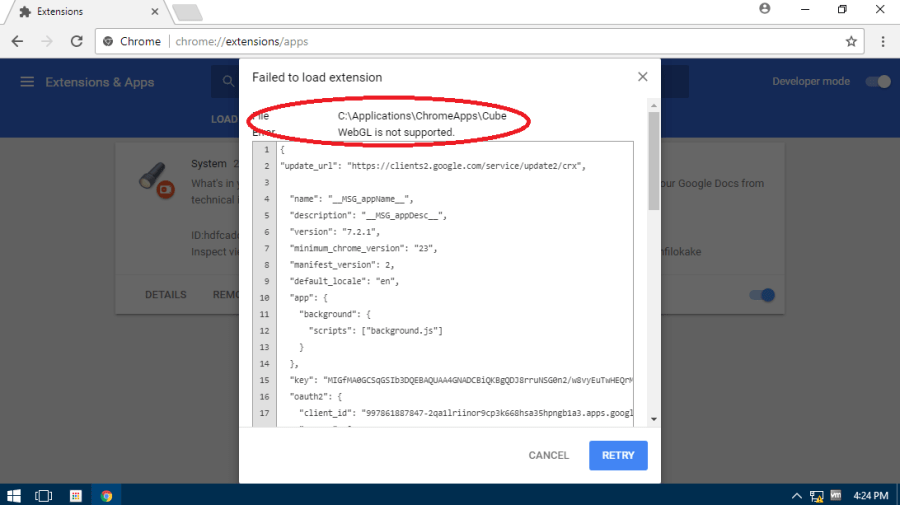
To install your app, go to “chrome:extensions”, slide the “Developer Mode” switch to on and click on “Load Unpacked Extensions”. Select the path of the extracted folder and click OK. You might get a “Can’t be installed: No WebGL Support Error” (like below), but don’t worry.
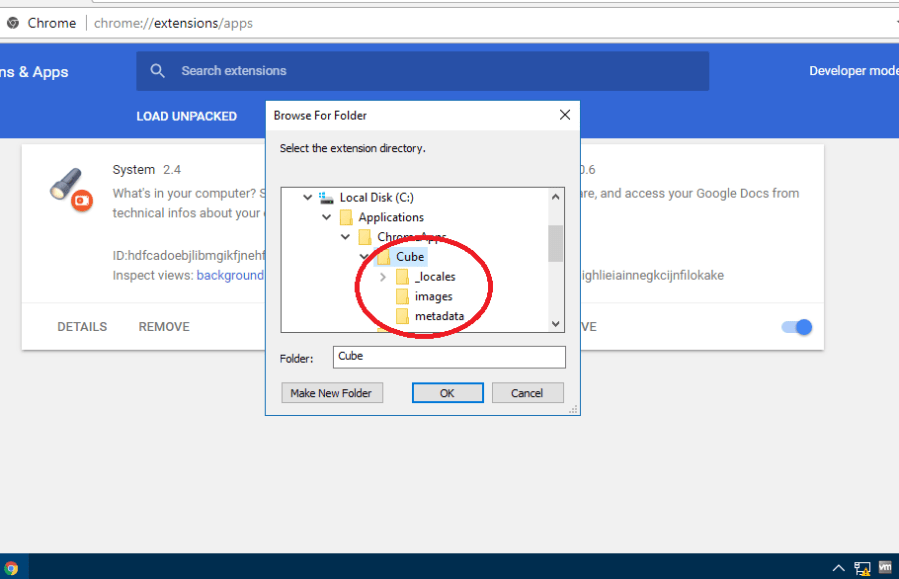
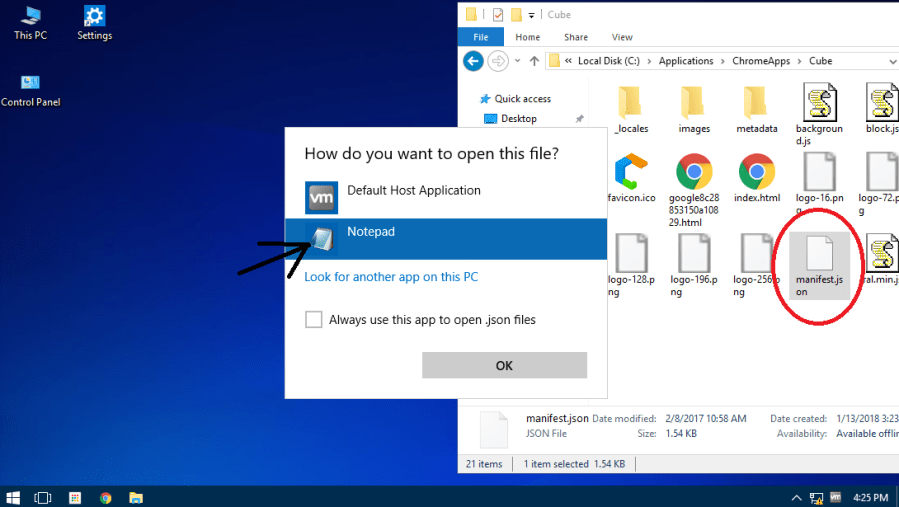
If you still get a no WebGL error, navigate to the extracted app’s folder, and open the file “manifest.json” file in Notepad.
Then omit anything that says “WebGL” (but don’t delete its line), and try to installing the app again. If all went well, the app should’ve gotten installed. But don’t open the app yet!
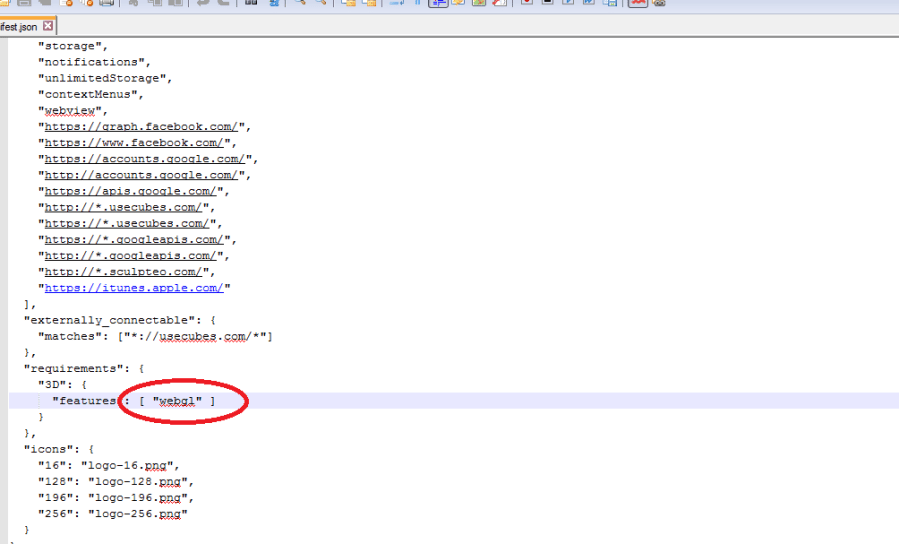
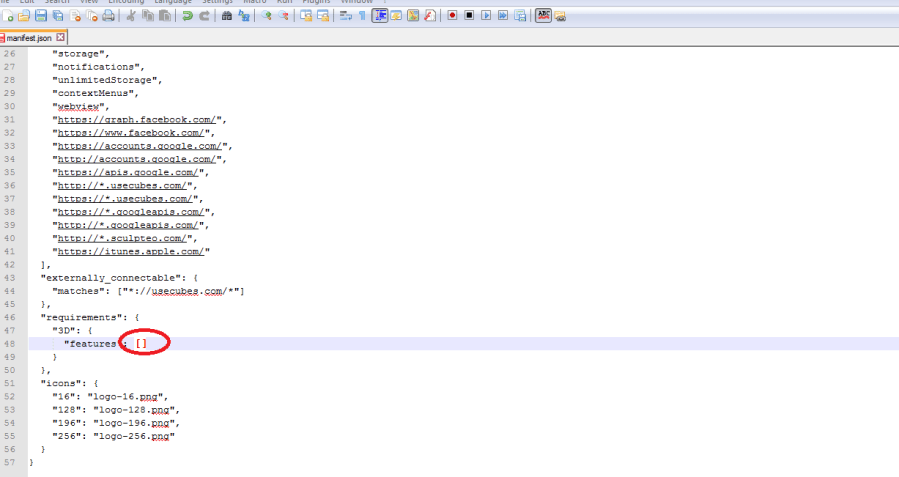
Once the app is installed, re-enter that “WebGL” thingy in the same place from which you omitted it.
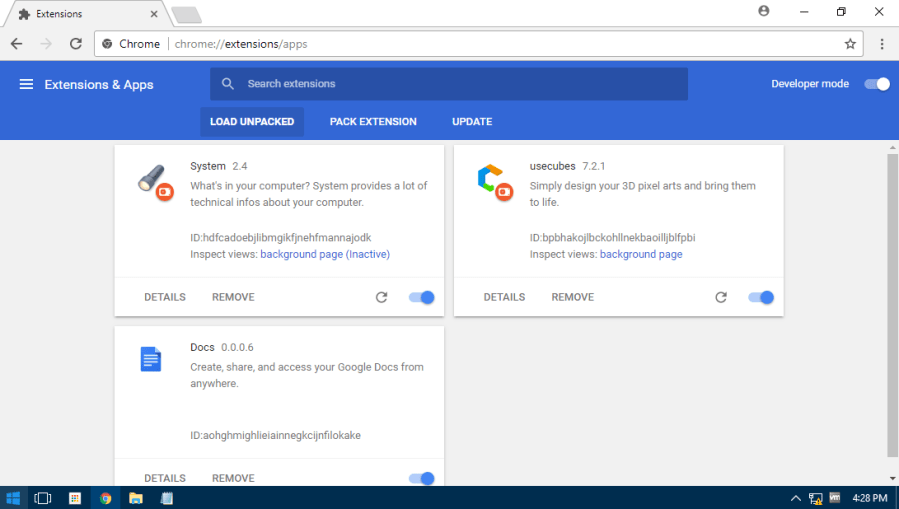
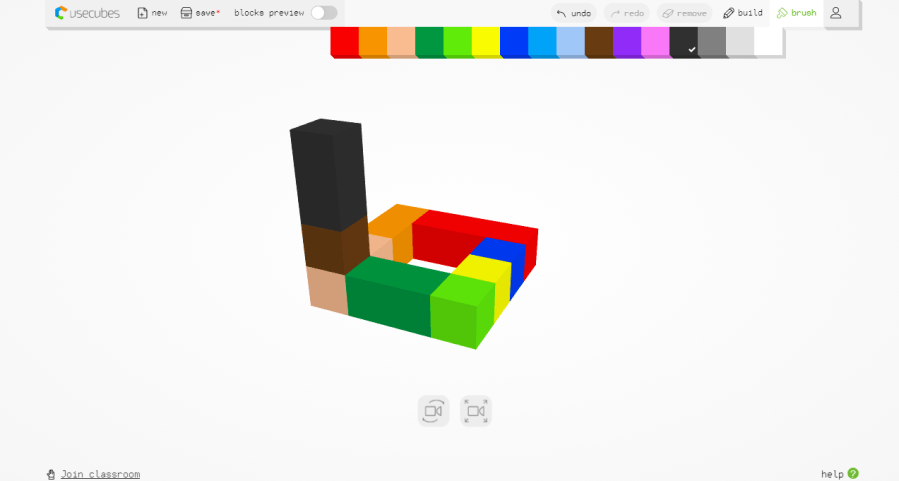
Now launch the app. It should be working without throwing any errors!
Hope that helped someone 🙂

 Help Ahoy!
Hey there! This post couldn’t be written any better! Reading this post reminds me of my good old room mate! He always kept chatting about this. I will forward this write-up to him. Fairly certain he will have a good read. Thank you for sharing!|
LikeLike
Hey There. I found your blog the usage of msn. This is a very neatly written article. I’ll make sure to bookmark it and come back to learn more of your helpful info. Thanks for the post. I’ll certainly comeback.|
LikeLike