Here’s a short tut on how to unhide the “System Reserved” partition in Windows to change “bootmgr”, “BCD00000” or any other file. We will be using an app called “MiNi Tool Partition Wizard”. First, get the app and open it up. Right-click on the reserved partition and click change drive letter.
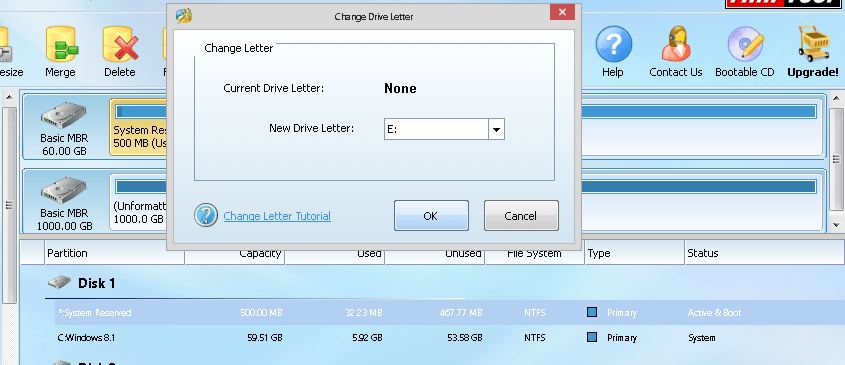
Then change the drive letter to a desired setting and click Apply on the main screen. Your reserved partition should appear in explorer.
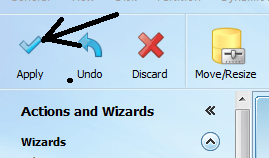
Once you’re done with your task, go through the same steps but select “None” in new drive letter in the Wizard. Then click on apply.
Link: |MiNi Tool Partition Wizard|
Hope that helped!
 Help Ahoy!
You must be logged in to post a comment.