Have you ever had your partitions accidentally deleted? Ever had some careless click screw your hard drive? Ever had the “RAW” files or “Format Disks to use” error?
If so, here’s a godsend for you. I’ll explain in detail what your scenario has to be: say you have your partitions accidentally deleted, and assuming you didn’t create a new partition in its place, and all your data’s very very very precious. You can recover the lost partition by using a little tool and some patience. The slight catch is that this only works 97% of the time and on HDDs (not SSDs). If you want to recover your data, here’s how.
First, get “MiNi Tool Partition Wizard” from the link given, then, either plug in the defective hard drive into another PC or get the second bootable ISO and apply it to a USB. Next, either open up the wizard from the second PC or boot up the first (PC) from the bootable USB. After that step is completed, all the steps are the same for both groups.
|MiNi Tool Partition Wizard| Latest (They removed partition recovery in ver 10)
|MiNi Tool Partition Wizard 9.0| (Recovery still there for home users)
|MiNi Tool Partition Wizard Bootable|
You will be greeted by this screen when you open the program. As you can see, the second disk is unusable and is indicated as raw files.
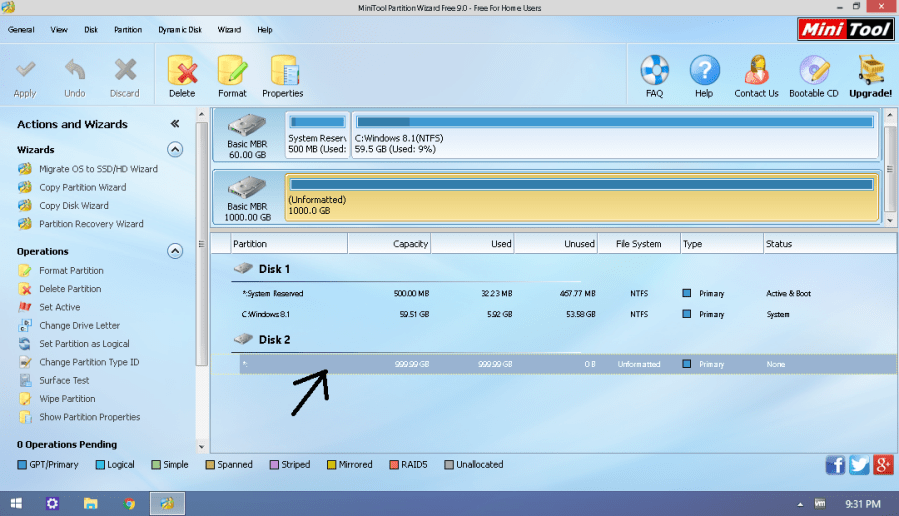
In order to recover data, click “Partition Data Recovery” on the left panel.
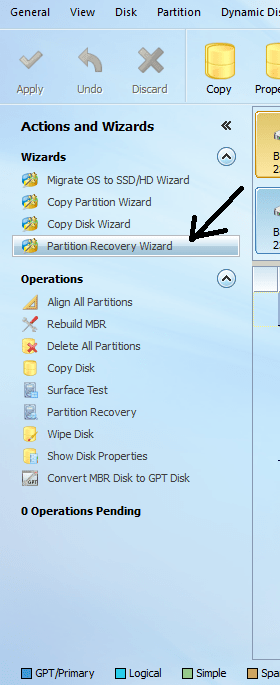
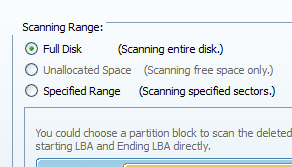
Click next in the dialog that follows. Then select your desired partition and click next. In the screen after select “full disk”.
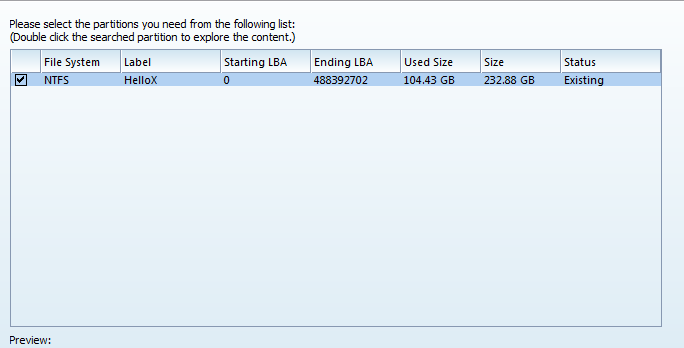
Click next again and select “quick scan” (if quick scan doesn’t show lost partitions the first try, try full scan the next time). After the scan is finished, you will be greeted with a screen like this. Tick the partitions you want to recover and click finish.
Then click “apply” in the main screen.
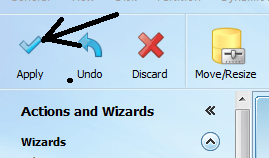
Once all the operations are complete, close the wizard and restart your PC. Hopefully the partition would reappear. If it doesn’t, try manually allocating a disk letter to the drive.
Hope that helped!
 Help Ahoy!
You must be logged in to post a comment.