So you went with the flow and got Windows 10 installed; ooh! So shiny, so fast, so- wait! Whoa! This piece o’ crap won’t install in 10. Stupid 10, won’t even install my antivirusK. I’m sure it installed in 7, but how can I get that without sacrificing this?
You’re probably feeling a bit down, seeing as how an older OS cannot be dual-booted with a new one without it being installed first. But that’s just Microsoft propaganda! I’ll be showing you how to dual-boot Windows 7 with an installation of Windows 10 already installed (Do keep in mind that this method only works if you have the latest OS already installed and that if you want to install Windows 10 on a PC running 7, you can use the normal method).
The reason as to why you cannot install an older OS is as follows (quoted from Microsoft’s website) “the “bootmgr” code we use in the latest version of Windows may not have been around when your older OS came out, thus the OS may not detect the later as the digital certificate would not yet be valid”. This method cannot be used for installing Windows XP (it can, but I haven’t tried!), although it should work fine on Vista to 8.1. Also the same method can be followed to re-install Windows on a computer already on a dual-boot configuration.
Pre requisites: EasyBCD, how we’ll put the boot data in a multi-boot friendly form; And GImageX, how we’ll be applying the image. (Also, you’ll need the Windows installation disc of whatever version of Windows). I will be assuming that you would have already made a partition for that version of Windows.
|EasyBCD and GImageX| (extract to a folder, find “gimagex.exe” in /install/x86/, execute it)
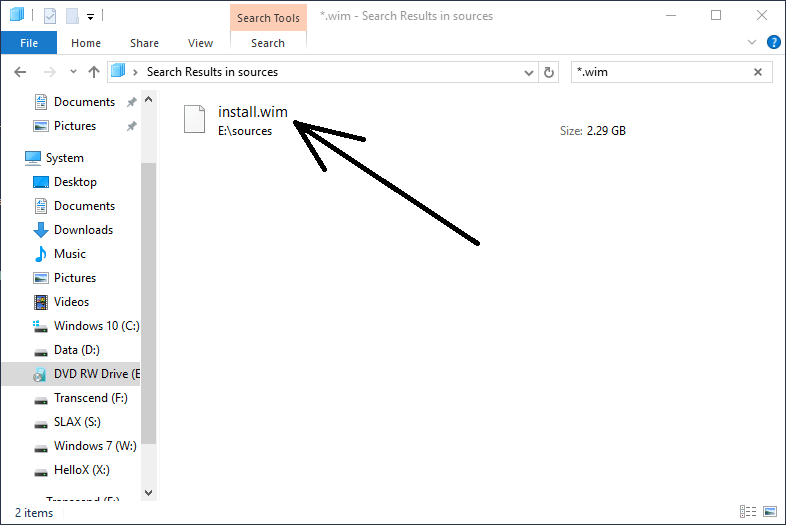
Extract the “install.wim” file present in the Windows installation disc to any folder (or keep it in the disc. The file will be in “/sources/” directory and will be called “install.wim”)
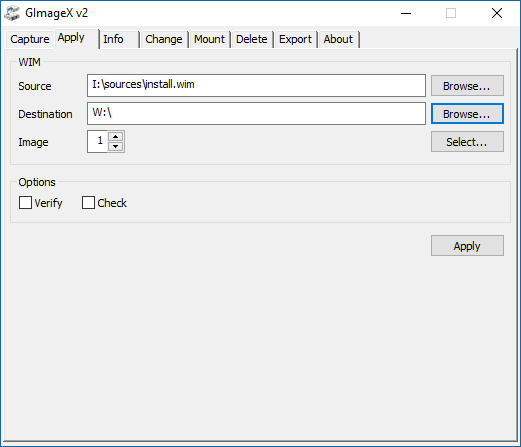
Next, open up GImageX and click on the apply tab. For the “Source”, point to the “install.wim” file in the installation disc, and for the “Destination” the partition you plan to put that version of Windows onto. Then click apply. It will take a few minutes to apply, which after finished will say something like “All completed successfully”.
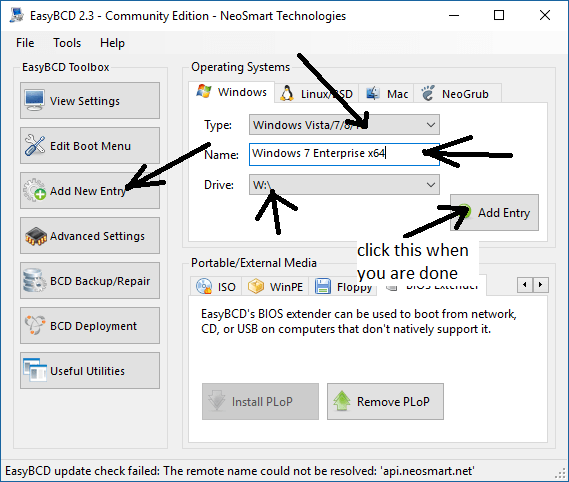
Now for the easy part, install EasyBCD and open it up. Click on the “Add Entry” tab. Click on new Windows entry, and configure relevantly (for example: if your second installation of Windows is in “W:”, configure likewise. And remember to name it specifically).
Reboot your PC. If it all went right, it will ask for which OS to boot and hopefully, there, you should be able to get to Windows 7 (or whatever). PS. It will take a while as all the normally-completed-with-the-installer steps will have to be done here.
Enjoy Dual-Booting! Hope that helped!
If you didn’t have an “install.wim” file but an “install.esd” file, read this article (just get the applying code).
 Help Ahoy!
You must be logged in to post a comment.