GenyMotion is one of the best developer orientated android emulators. It features changing desired device images to using more than 32 processors. Although all this comes at a hefty price, and an even larger price in resources. For the average user, all this crap might be useless. For the average Joe who just wants to experience android, getting into coding can be tiresome.
More and more people want to run android on their PCs. But most of these require virtualization support on their CPUs. Although most may have VT-x, only high processors feature VT-d, which is required for some aspects of android.
Since GenyMotion requires VT-d or at least VT-x, most folk are left in the dust, be it having no VT-x or just not having the right BIOS for it, we’ll teach you how to use GenyMotion without VT-x!
- First of all get GenyMotion, VirtualBox. Then setup/install all of these. After that sign in to GenyMotion. Next get at least one VirtualMachine. But make sure you get something that’s not very resource intensive. (say, if you have 2GB RAM, and a 2.0Ghz CPU, get something that uses about 1GB RAM and only one CPU. Depending on you)
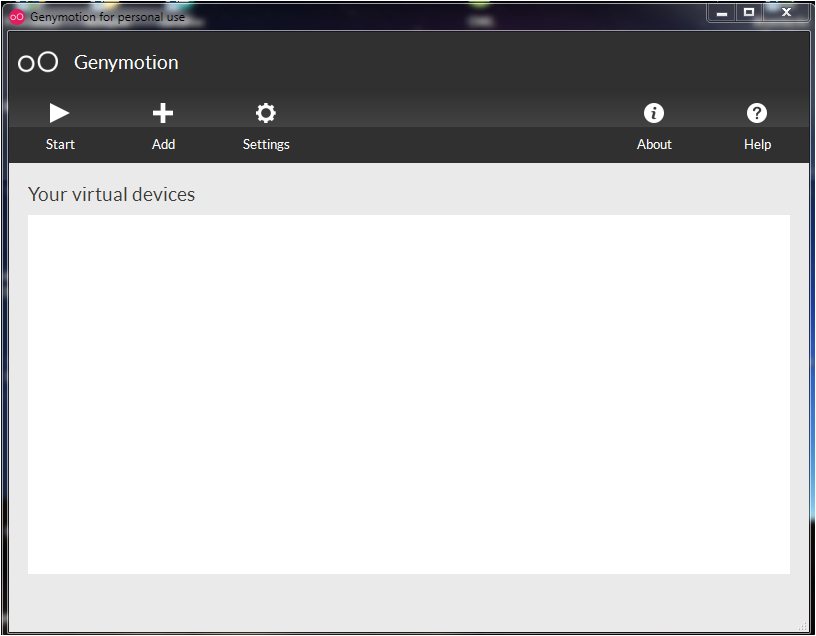
- Next click settings in GenyMotion, and find out where it stores its VM Download files. (or if you installed the VM, go directly to step 4.)
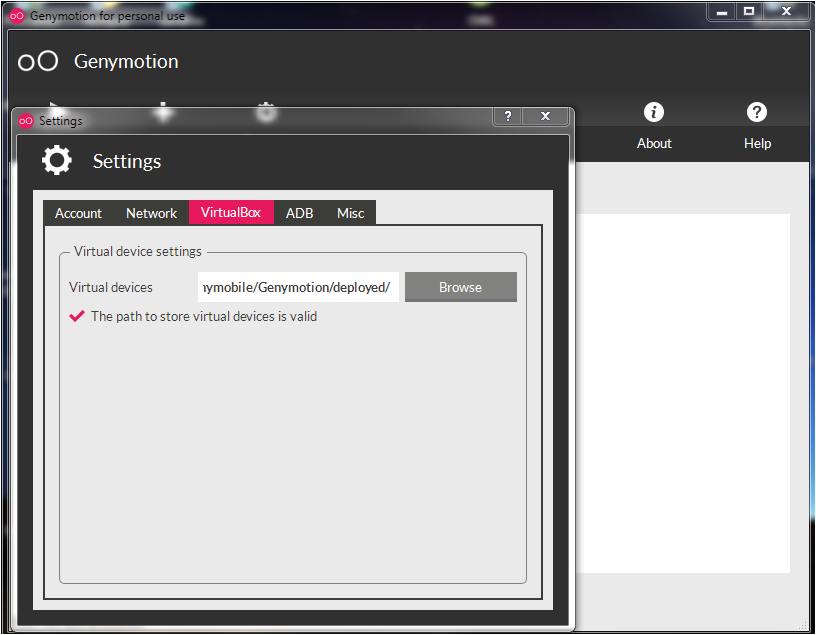
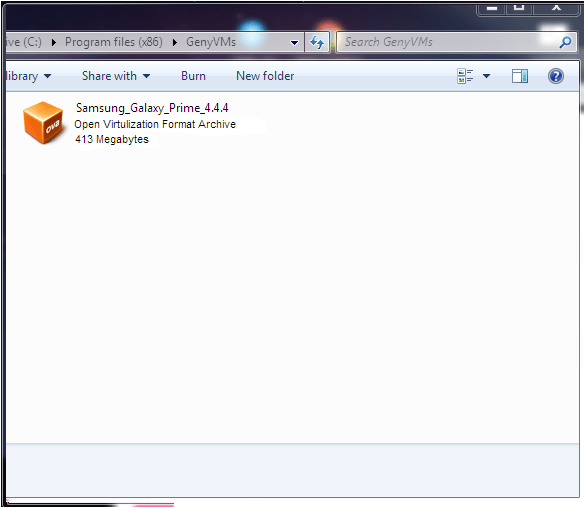
- Go to that location (normally C:/Users/%user%/AppData/Local/Genymobile/Genymotion/deployed/ ). You should find a file with a .ova extension. Double click that file and follow instructions in VB interface. (mind when choosing the number of processors, set that to one by click in the value and using the up down buttons)
- Open the VirtualBox interface. Click on the now installed VM and click settings.

- Next, go to each of the following: System, Display. In system, reduce the RAM into a green or orange area, then click processor and make certain that number of processors is set to one. Then go to Display and reduce graphics memory to something manageable. And tick 3D acceleration.


- Click OK at the bottom. Then click your VM and click Start (near Settings icon, shaped like a right arrow). Your VM should boot up fine.
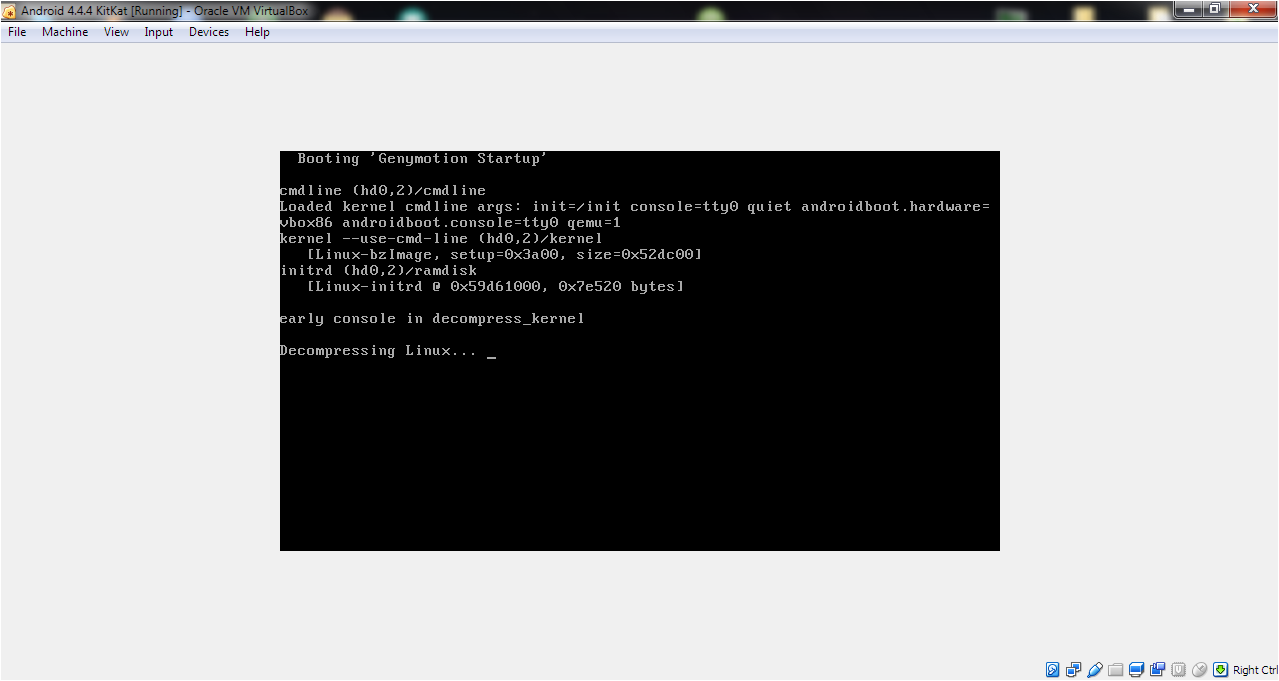
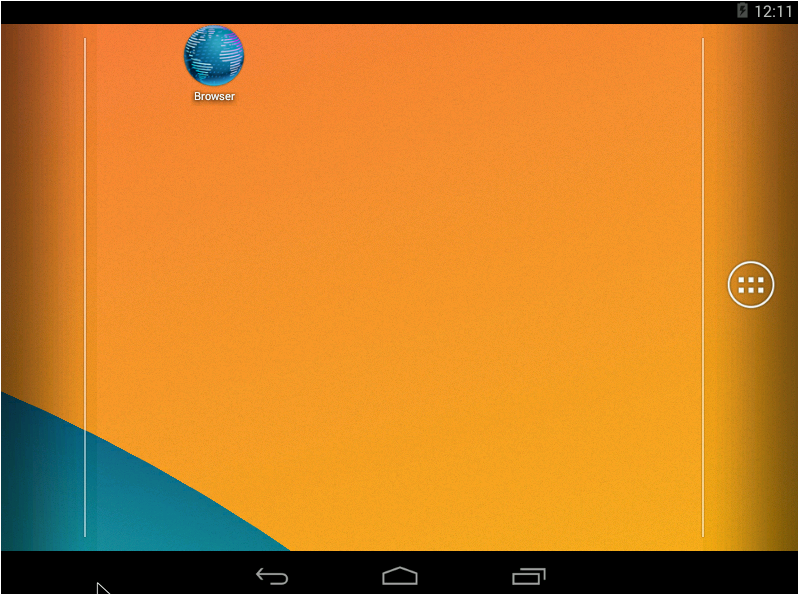
Small Print: close all other resource intensive programs when running GenyMotion this way. If you are using Win 7, set theme to Win Classic in personalization. Also you might have to start VB with administrative priviledges. Note that using the latest android version (Android P) will not work well with performance (JellyBean is recommended). Don’t play resource intensive apps on this. DON’T run the VM from GenyMotion interface, as it will crash the VM!
 Help Ahoy!
You must be logged in to post a comment.