Installing an app from the Chrome Web Store is a breeze. Yet there are times when you want to install a chrome app from outside of the Web Store. It might be ‘cause the app you want is no longer available or your PC might be offline or you might want an app your friend has. Whatever the cause, it’s good to know how you can manually install a Chrome app.
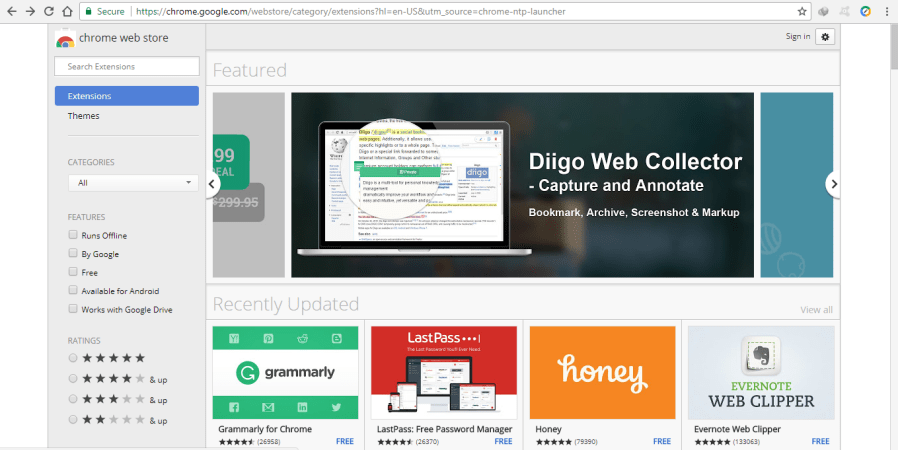
I’ll present you with two methods. Both methods will require you to have the needed files. I am assuming that we’ll be needing an app no longer available on the store, and thus will point you towards getting that CRX file. If you don’t have a CRX file but have an extracted app, proceed directly to method two. We start off by opening the needed app on the Chrome Web Store.
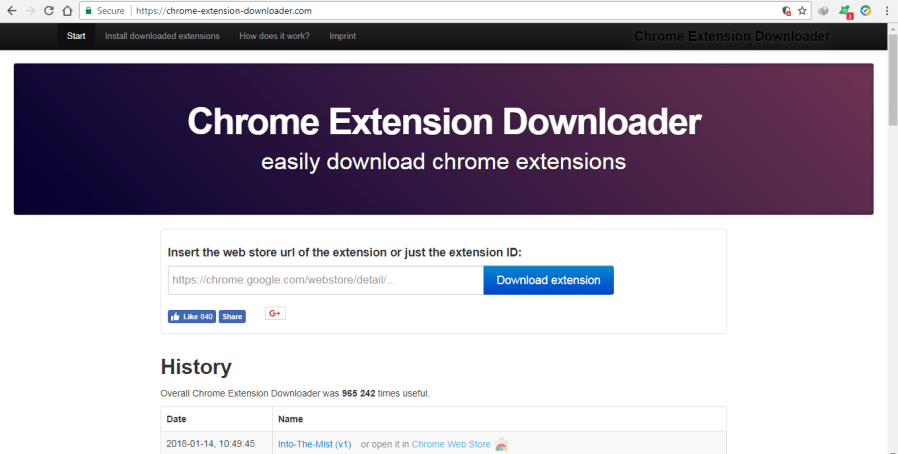
Then go to This Site and enter the URL of the app you want. Then click on download
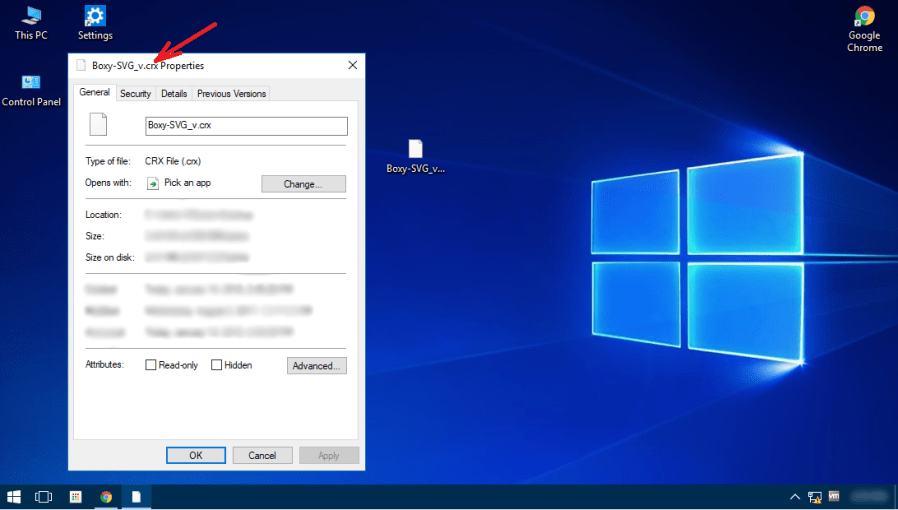
A CRX file will be downloaded. Now this is where method one and two are defined. If you follow method one, open “chrome:extensions” on Google Chrome.
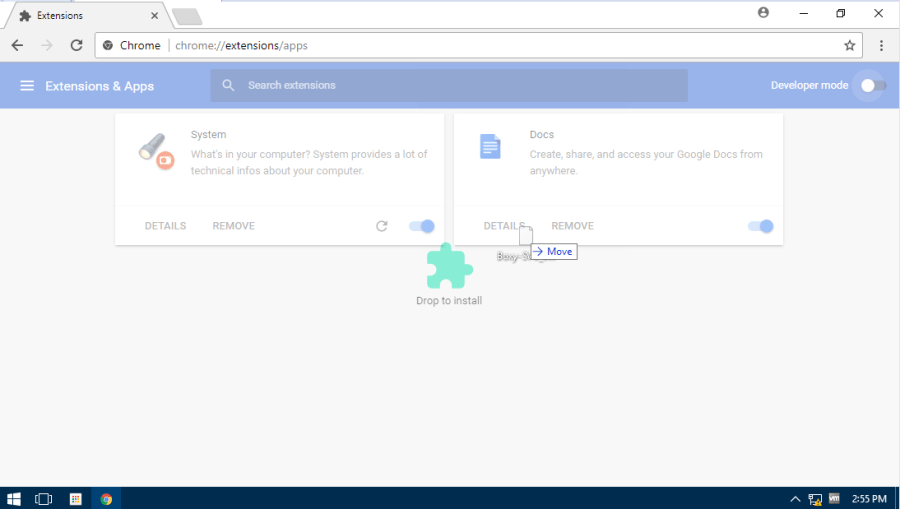
Then drag and drop the CRX file onto that page. Your app should get installed. If you get an error saying that the app is only available through the Web Store, proceed to method two.
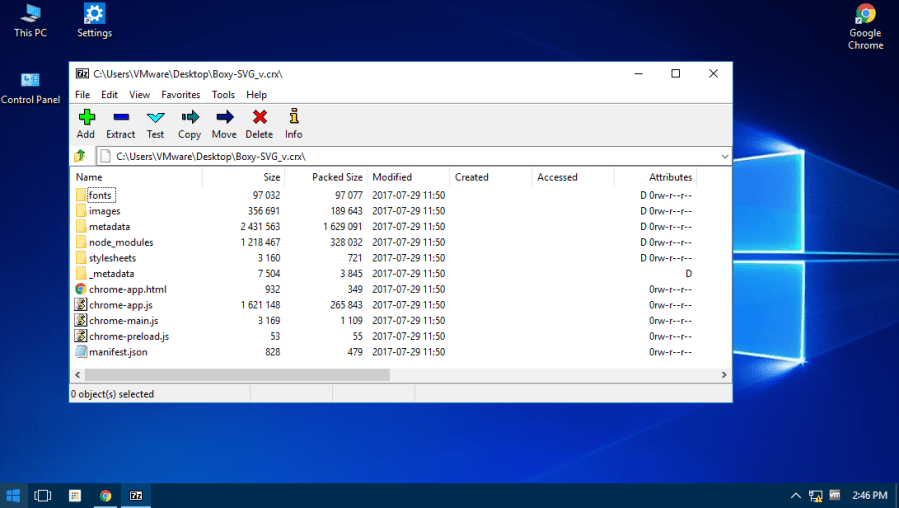
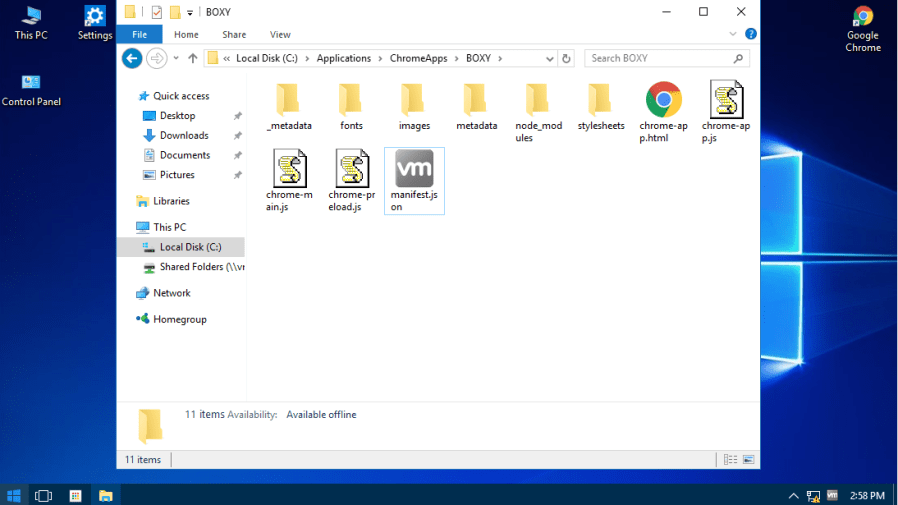
In method two, we start by extracting the contents of the CRX file onto a folder. Use 7-zip to do so. I will be extracting to “C:ApplicationsChromeApps”. If you used an extracted CRX file or got the app’s folder, just stay put. Which ever method you followed, change the folder “_metadata” to “metadata” inside the extracted CRX file’s directory. (You have a folder inside the extracted directory called “_metadata”).
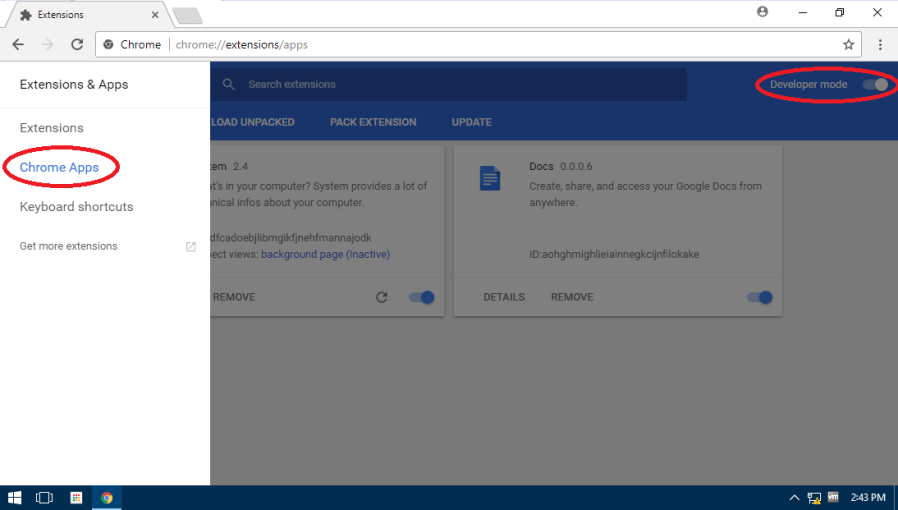
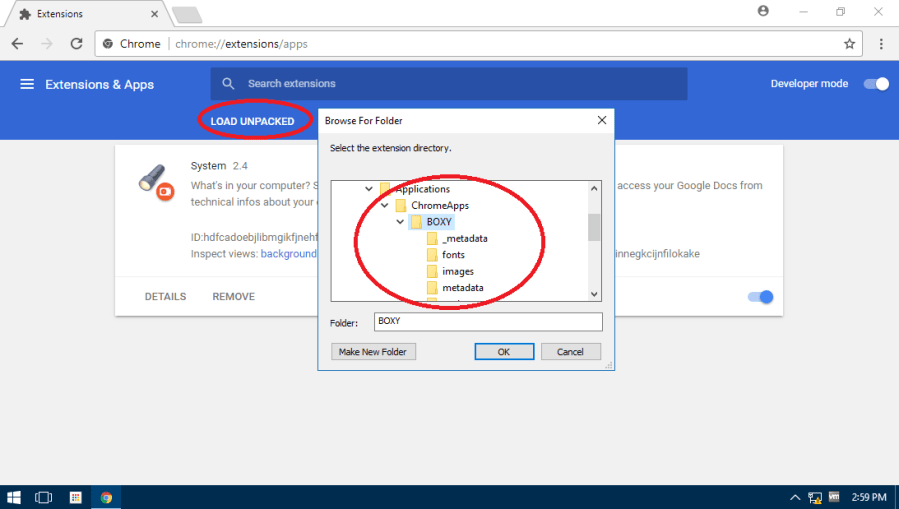
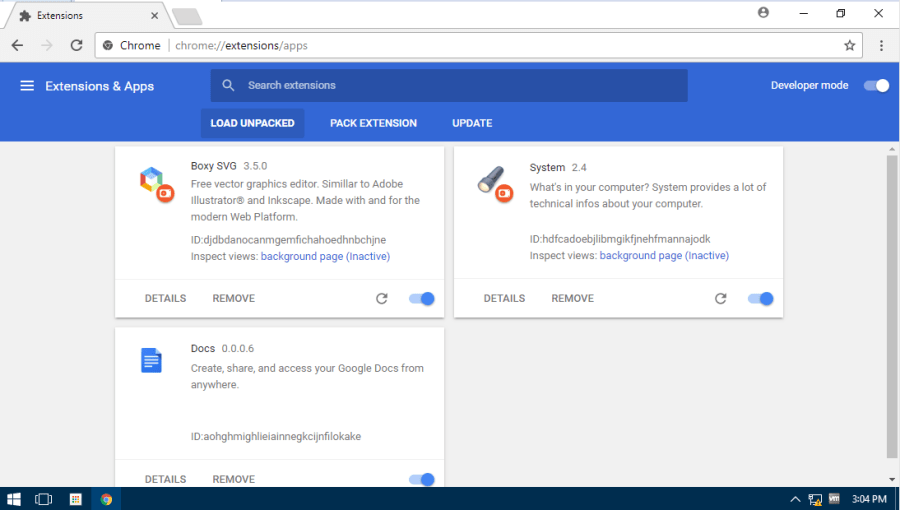
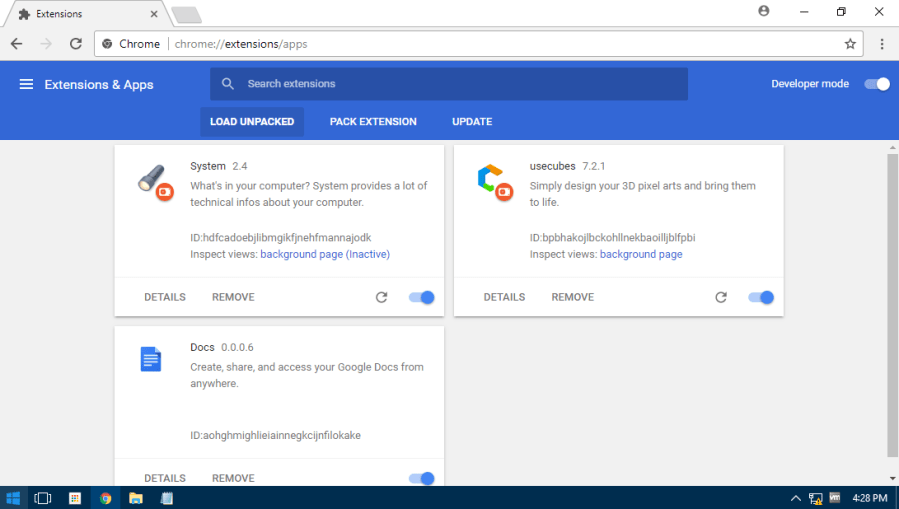
Go to “chrome:extensions” again. Click on Chrome Apps. Toggle the Developer Mode switch. Then click “Load Unpacked Directory”.
Point to the directory in which the app’s “manifest.json” file is situated.
Lately, Google Chrome has been denying access to the WebGL API set on older PCs (before 2013). I’ve read on some forums that there are a myriad of methods to force WebGL back on. But the thing is, none of them -even remotely- work on the latest (Dev_Version68/Stable_Version63) versions of Chrome. I found my own method to get WebGL to work (well, to-work so much as forcing it) on PCs with older hardware. I’ll share that with you in this post.
First of all, let’s get some food into our brains as to what WebGL is, and more importantly, why it’s disabled. WebGL is the equilent of OpenGL on a browser. Likewise; WebGL 2.0 is OpenGL 2.0. Moving onto why it’s not working; the reason can be one of the two: either your PC is so old that it really doesn’t support WebGL (I am not fixing that), or previous versions of Chrome worked well until the latest version (I can help you on that). The latter lies in Google removing support for older GPUs ‘cause there are better ones coming out (the way of life bro!).
That’s that done. First, establish whether or not whether your system actually supports WebGL by going onto this link. If you don’t see a cube, then sadly I cannot help you. If you do see a revolving cube, then cheers! But all is not fixed for even if you see that cube, our friend Chrome might not allow you to use WebGL (in Chrome Apps etc.).
Do please note that the new problem with old Intel drivers not supporting WebGL2 cannot be fixed; until Google decides to patch that, that is!
Now, there are quite a few methods to fix this issue. One: you may downgrade to a Chrome version that worked well on your PC (This is recommended if you want to run Chromium experiments). Two: downgrade to an older version and then upgrade from that to the latest version (this worked well in quite a few cases, especially on older hardware like Core Solo and Pentium D). Three: try some tweaks in “chrome:flags” (like “Force WebGL 2.0”, or “Use Multiple Raster Threads” etc.) but all that is at your own risk. Four: you can upgrade your hardware so that Chrome will support WebGL. Five: -my personal method to get apps working without WebGL- a combination of all and a touch of me! I’ll elaborate on this in the next paragraph.
My personal method is for when you want to get apps that need WebGL working (Chrome Apps, mind you). It’ll require some elbow grease but all in the name of victory, eh? First, you will need CRX versions of the apps you want and extracted into a folder (Read how to HERE). Once you’ve gotten that, you can continue.
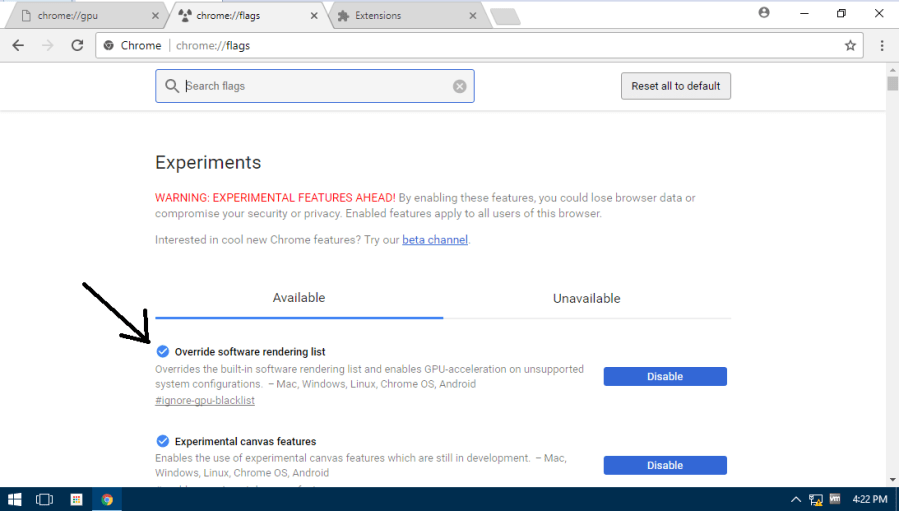
Open up Chrome and enter “chrome:flags” (no quotes) in the OmniBOX. Then enable the first (–ignore-gpu-blacklist) switch.
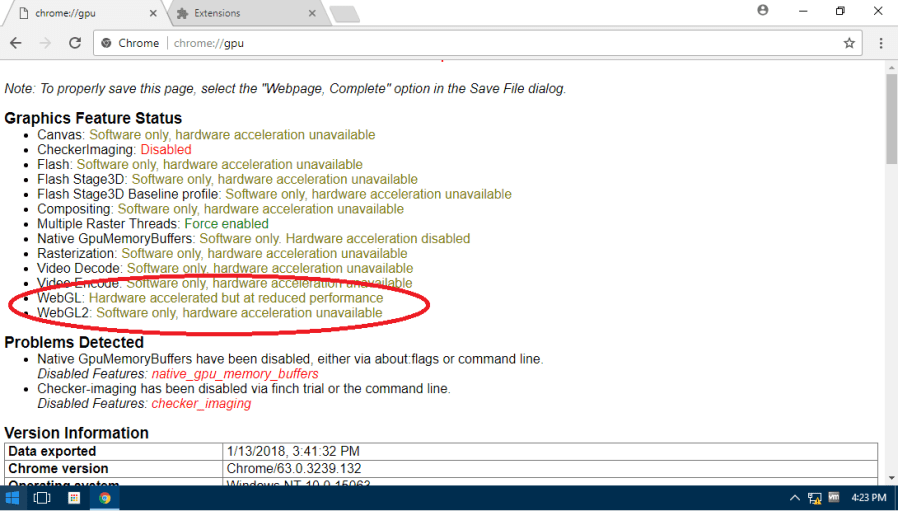
Then check on “chrome:gpu” (no quotes) for either “WebGL: Hardware Accelerated” or “WebGL: Hardware Accelerated, but at reduced performance” or “WebGL: Software Only” or “WebGL: Unavailable”. If you got one of the latter two, I can’t help you. But if you got one of the first two, read-on.
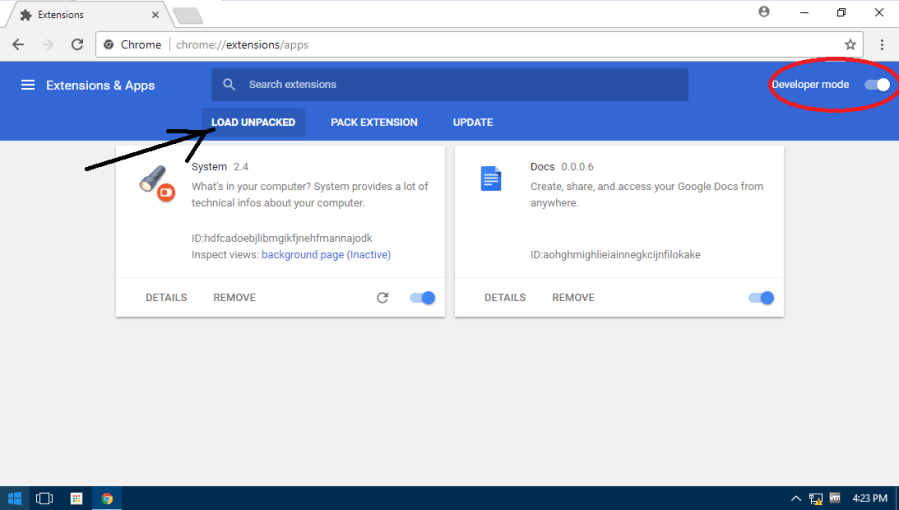
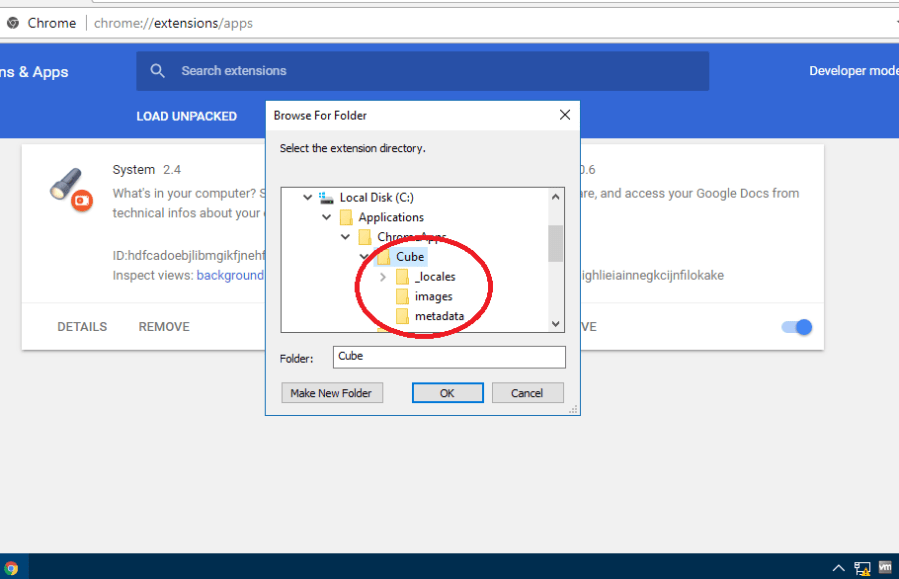
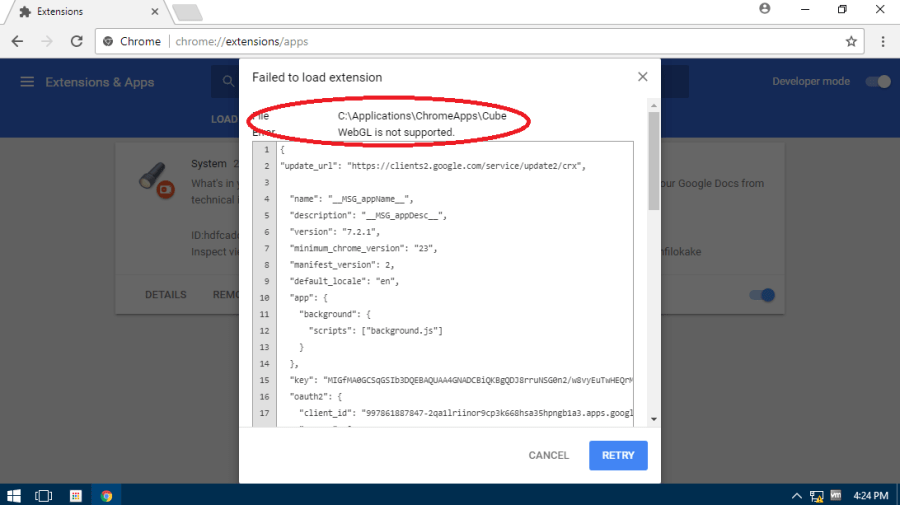
To install your app, go to “chrome:extensions”, slide the “Developer Mode” switch to on and click on “Load Unpacked Extensions”. Select the path of the extracted folder and click OK. You might get a “Can’t be installed: No WebGL Support Error” (like below), but don’t worry.
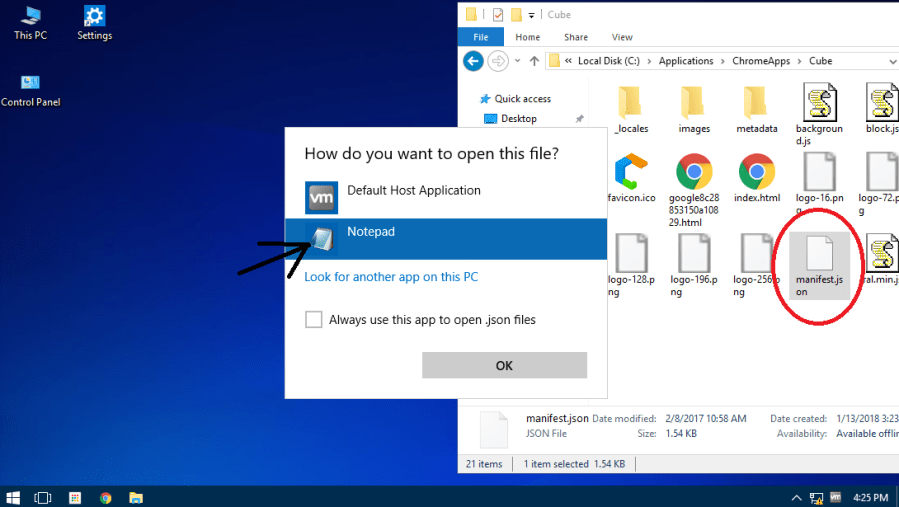
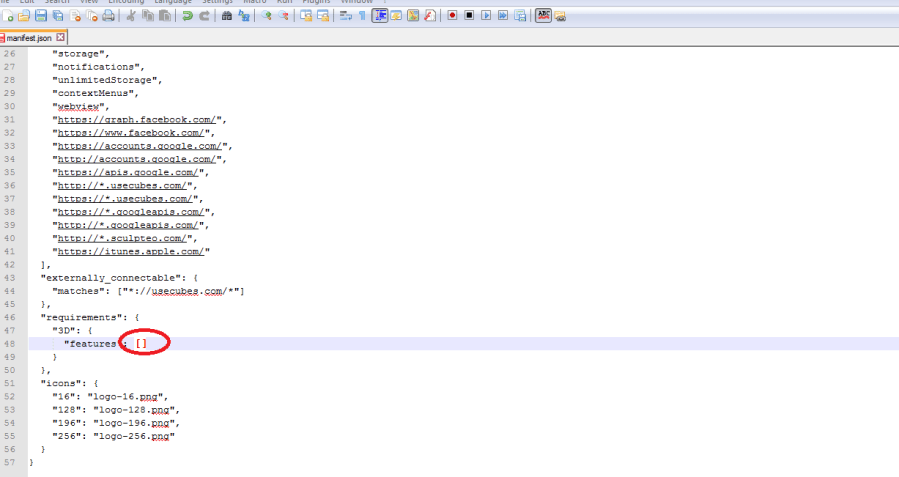
If you still get a no WebGL error, navigate to the extracted app’s folder, and open the file “manifest.json” file in Notepad.
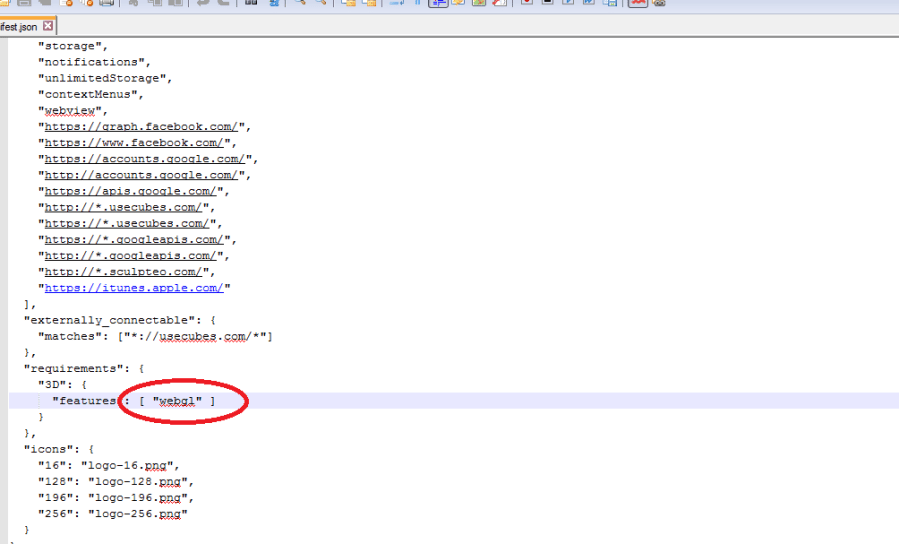
Then omit anything that says “WebGL” (but don’t delete its line), and try to installing the app again. If all went well, the app should’ve gotten installed. But don’t open the app yet!
Once the app is installed, re-enter that “WebGL” thingy in the same place from which you omitted it.
Now launch the app. It should be working without throwing any errors!
Lately, I’ve seen lots of peeps asking for AOSP versions, apps from CyanogenMod, apps from Samsung, apps that are in the pixel, and so forth! (Some have even gone far enough to ask “can you get that app from my friend’s phone? LOL). The main reason -for those of you who don’t know- is that the stock Google/AOSP version of any app is way faster than the modified app the OEM gives you (most of the time, anyway). Now, as many of you would have figured out, there aren’t that many ways to get the stock apps. Why? You may ask. The answer is that those apps don’t exist! Surprised? Well, you should be.
The Android Open Source Project (AOSP) is where all these apps generate, true, but they just hand away the source code. NOT the completed APK file. That’s probably why you can almost never get a “stock” app by searching on Google. What are your alternatives? Well, your choices are indeed limited. Either search for those apps on the Play Store (oh yeah! There’s a hell’o lotta people claiming they have the clean, AOSP, version of a particular app. Take for example the dude who claims he has the original Music app. The app he offers is from Android 2.2 and is loaded with junk (i.e. ads). And there are others who offer the “AOSP” app. But they equally compromise the user’s experience to such an extent that he/she is better without that app). The second option is to compile the apps from the AOSP source code. That, is as hard as it sounds. The third option for you is to sit tight with your moldy apps (yeah right! Like that’s gonna happen!).
I’ve just described the problems, hazards and downright failures in relation to getting stock apps. But I have an alternative. Recently, I have taken to compiling those apps from the source code in a way that suits all devices. This is a strictly non-profit project done (in my free-time. No! not free time free-time. Free-time as in literally the time I have free) for the betterment of the world. So that equals to no ads or any other sort of gimmicks asking/nagging you to cash-in. Got all that? Then read on……
I did hit a few speedbumps along the way. The first and foremost being that, compiling from the source code to suit all devices is painstakingly hard (these apps were supposed to be compiled by the manufacturer to a particular device). Plus, checking the apps on at least 40 devices is no easy task. Secondly, I had to “burrow” bits of code from other apps to get apps of higher API values to lower API Android versions (I’ve put a cut-off for all these apps at API 16, Jellybean in other words. This means that only devices running Jellybean or above will be able to run most apps (and even that barely). Thirdly, don’t expect all the apps to work perfectly. These apps (except when told otherwise) are all in BETA testing stage. Also, your particular device may or may not run these apps, but I’ve tried hard to keep compatibility in check. And lastly, don’t ask me to include this app and that app. I said clearly “free-time-only” above. If you have issues with an app, don’t nag me to fix it, just comment; and live with it.
Here listed are the apps I’ve compiled so far. Apps marked with a (*) are out of testing, while apps with a (#) sign are yet to be uploaded/made. Search Google if something doesn’t make sense. And – skip this part if you don’t care about the technical details – all the apps have a version name with the prefix “AndroidStock” followed by what Android version the app was in (e.g. AndroidStock 7.0.1 means that it was present in Android Nougat). Some apps may close unexpectedly due to some minor bugs.
NOTE: Some of these apps are available for Androids above 4.4.4 with UI and overall developments on Maarten Dekkers apps. they are recommended if you have a higher Android version, as all these apps have been optimized for lower Android versions. And I’ve also provided a link to a mirror of all the apps Lineage OS releases (But they won’t work unless you have a Lineage OS custom OS).
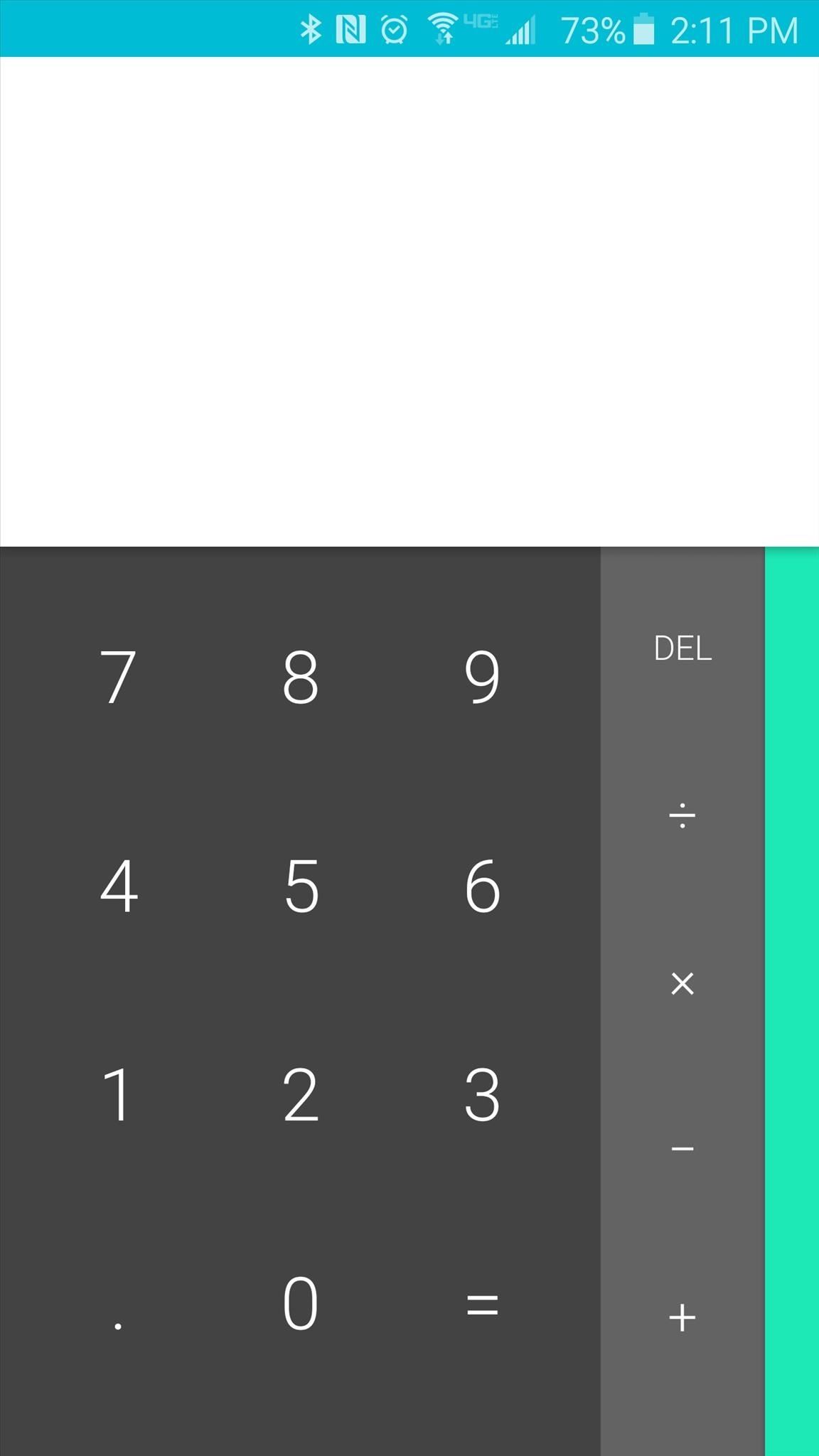
The Google calculator app. Ported to suite lower versions of Android. Taken from API 21. Tilt device sideways to get scientific calculator. If you have Android 5.0.1 or above, use the version on Google Play.
The AOSP camera app. Provided in three flavors; one; the official app for Android devices running API 20 or below; and two; the camera app from Android M; and a universal camera app that is in every Android.
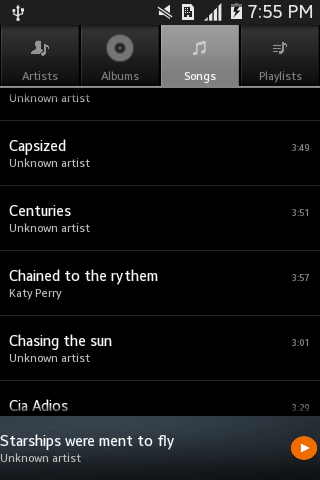
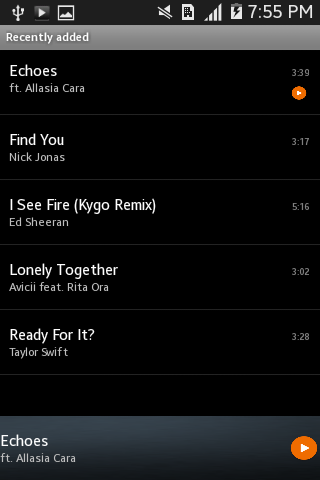
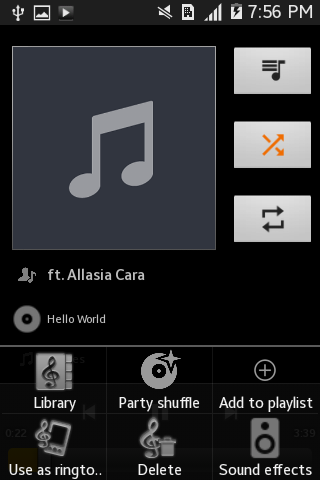
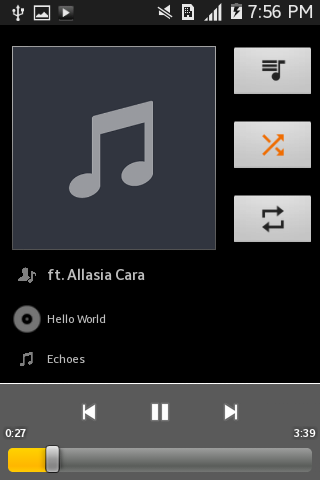
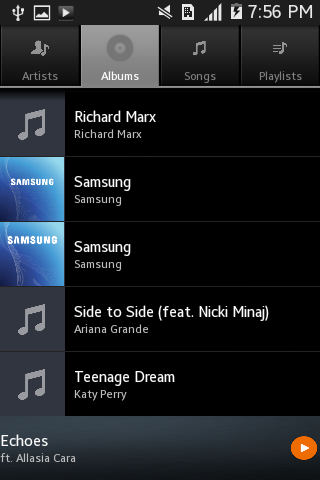
The Music app present in Android Nougat. It had to be modified to suite lower versions (Not all your favorite features of Eleven survived the version change, but rest assured, all the core features are present). Can be presented as a hybrid of the 4.4.2 Music app and the Eleven Music app. Comment if you find any bugs.
Note: on Samsung devices, use your recent app soft key (long press it) to access the menu (to get sound effects, set as ringtone, part shuffle etc.)
Google’s official Contacts app. Google made this app officially available for devices running Android 5.0.1 and above. I’ve made one that runs on devices with lower Androids.
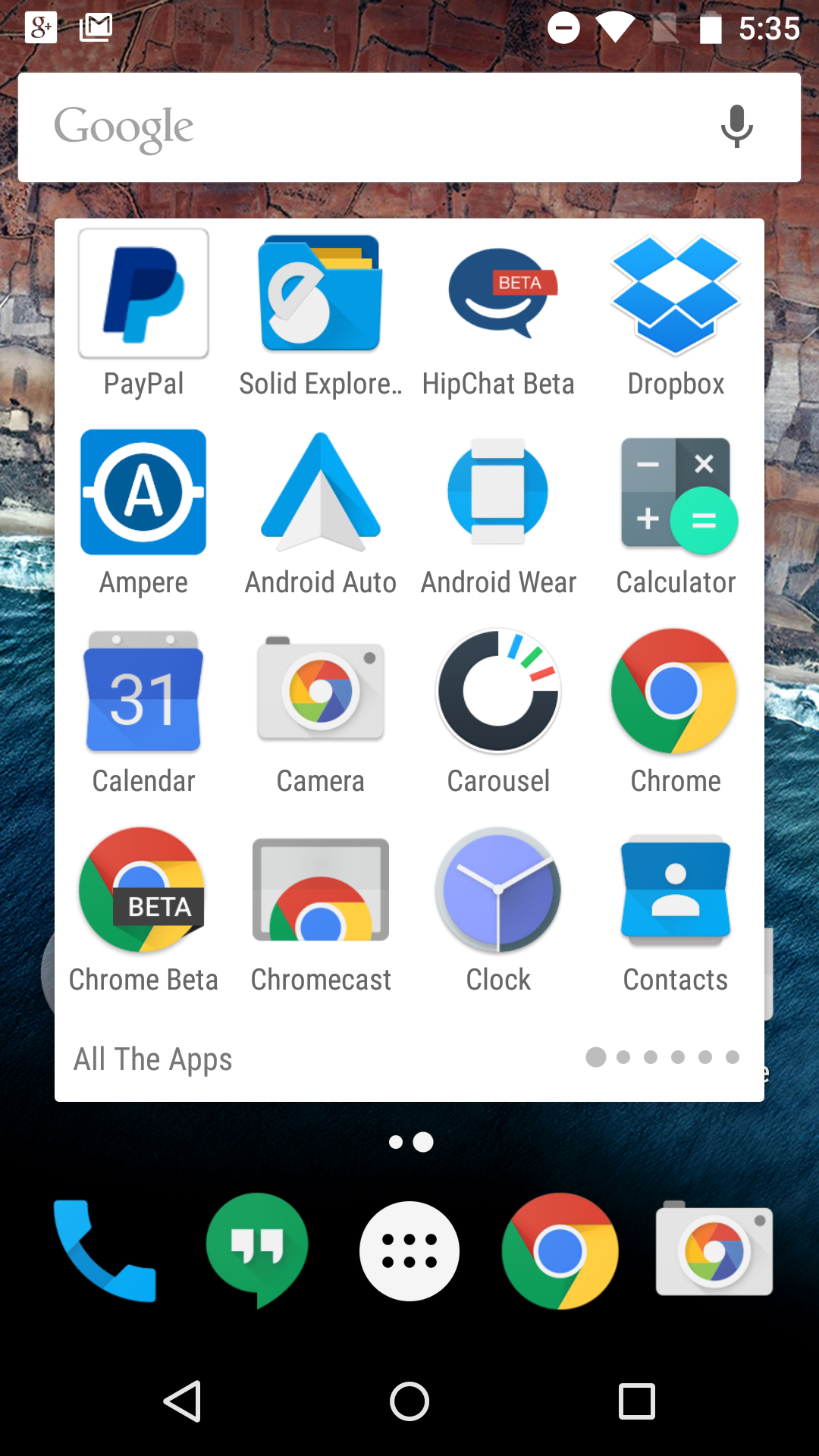
Google have the launcher in the Nexus devices for other devices with Google Now launcher. It is closely related to the stock launcher and it’s pretty fast.
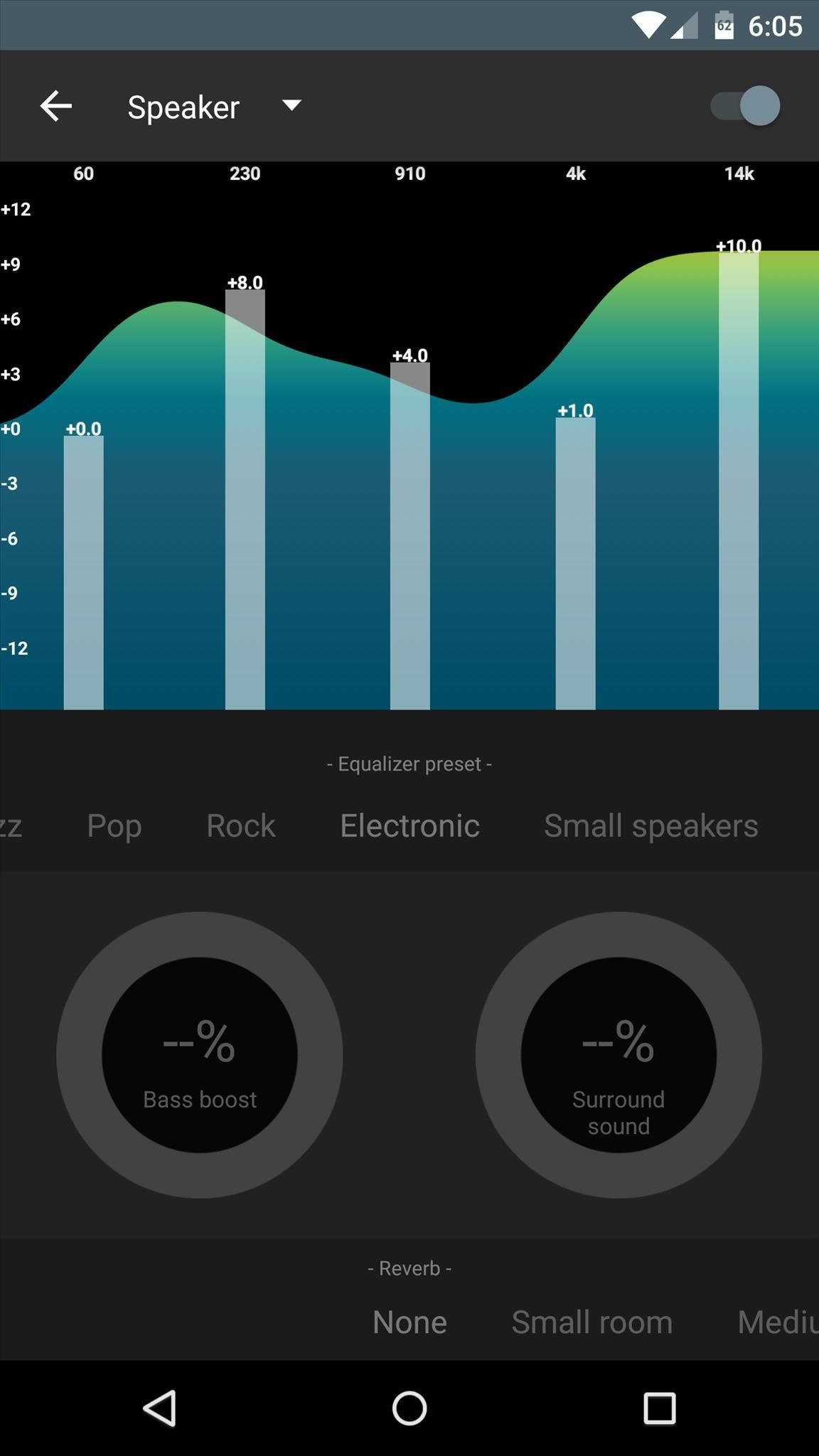
The much waited equalizer app for Android. This app is specially optimized for lower Android versions. It still has some bugs regarding the equalizer and some have even reported that it doesn’t work! Still neck-deep in testing. Best wait for the final release. That said, there are some great equalizer apps by 3rd party developers. I’ve provided links for some of them.
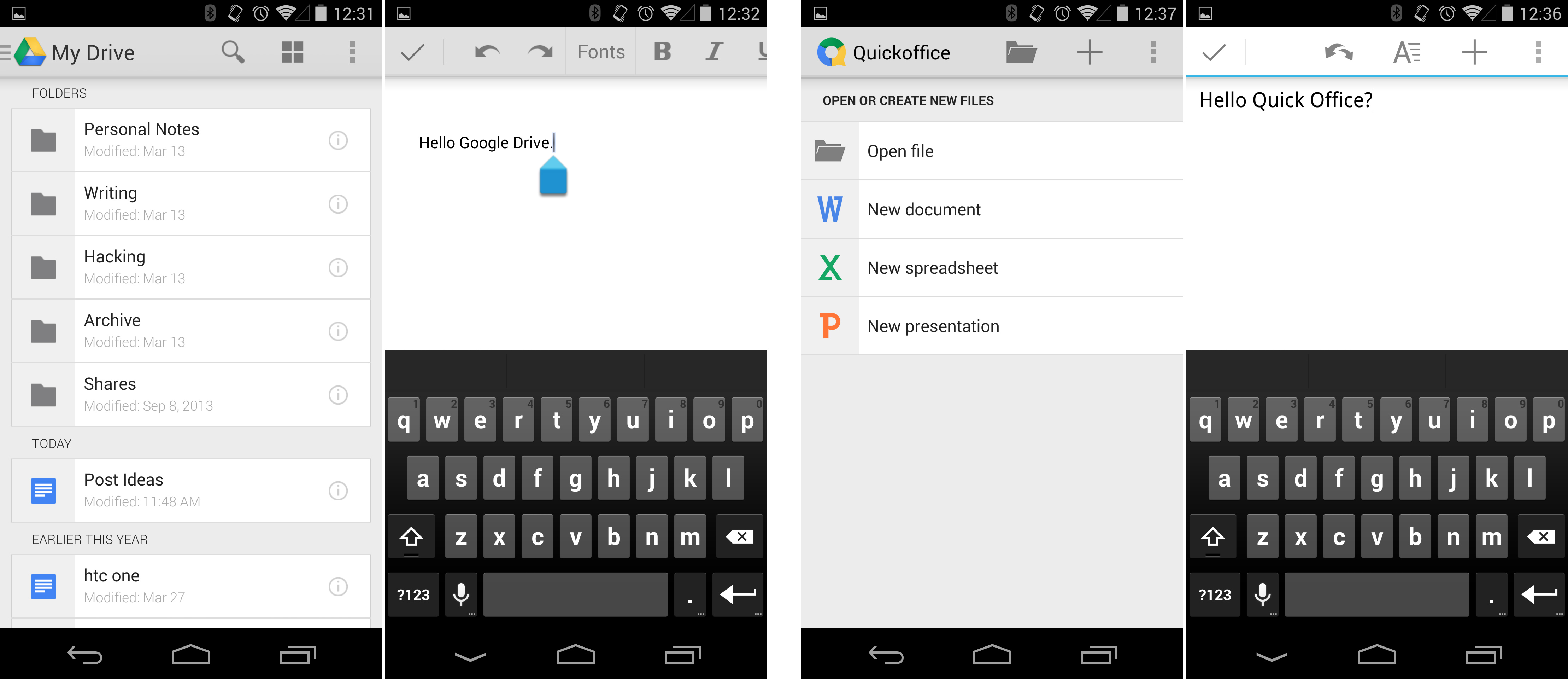
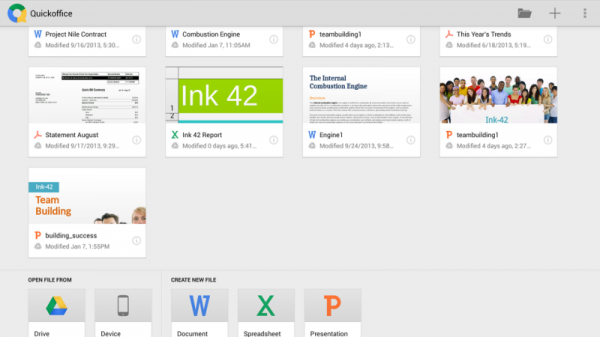
Google’s office app. It came preloaded on many devices before 2016 June when it was taken off the Play Store. It’s got no porting but I thought I’d share it as it truly is the lightweight office app (>10MB). Better than Microsoft’s/Polaris’s bunch if you’re just gonna edit a document or something.
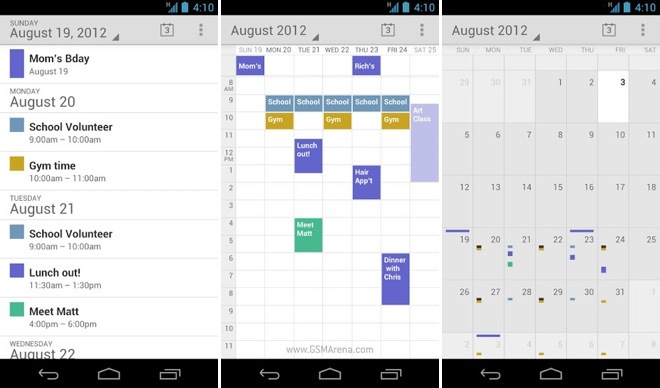
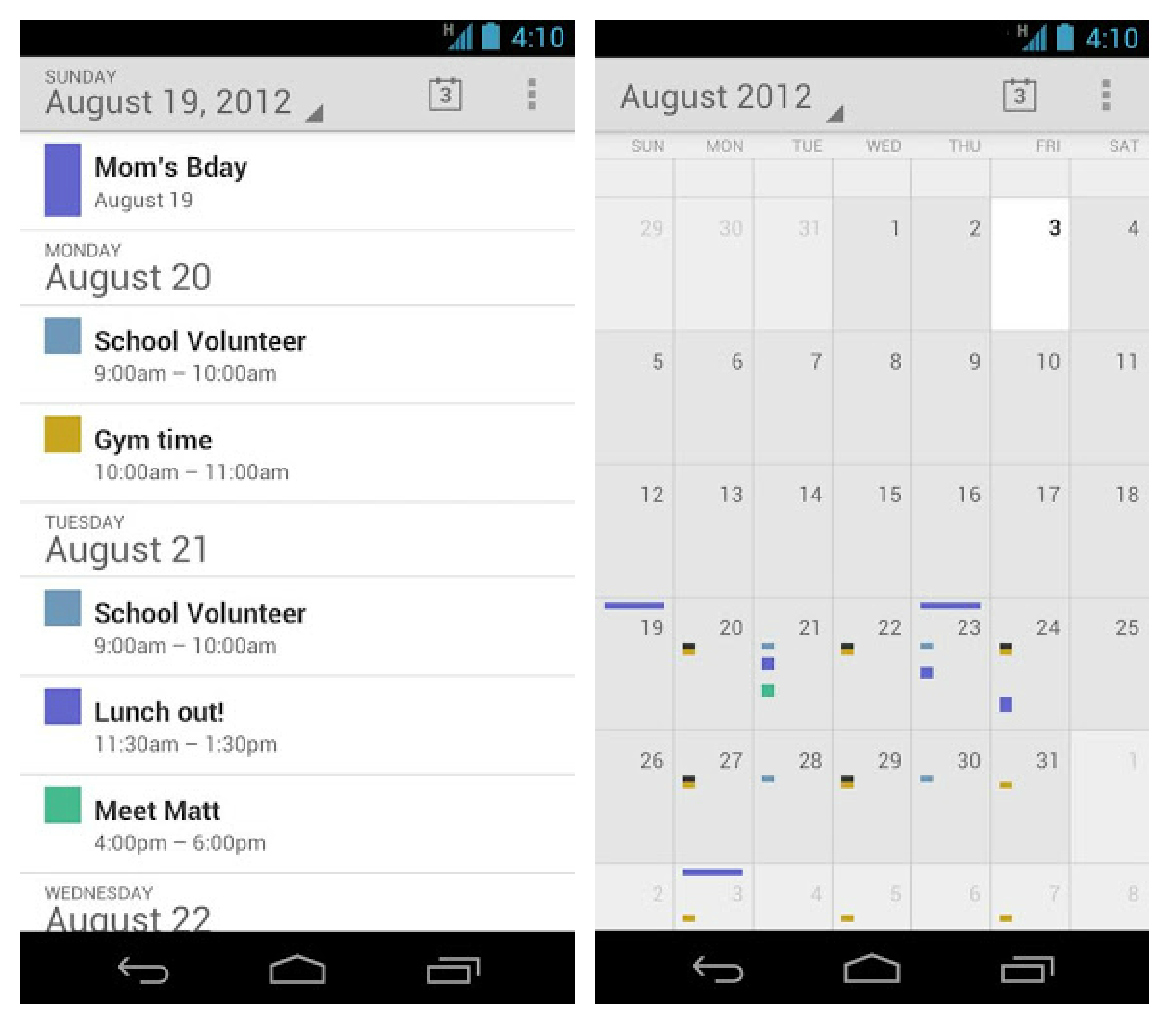
The stock AOSP calendar app made available for everyone. It beats the OEM apps -like S Planner- by a mile! (No offence!). Features a pretty simple interface.
Alternatively, you can go for Google’s calendar which gets frequent updates and a nice UI, but you’ll be compromising efficiency. Your pick!
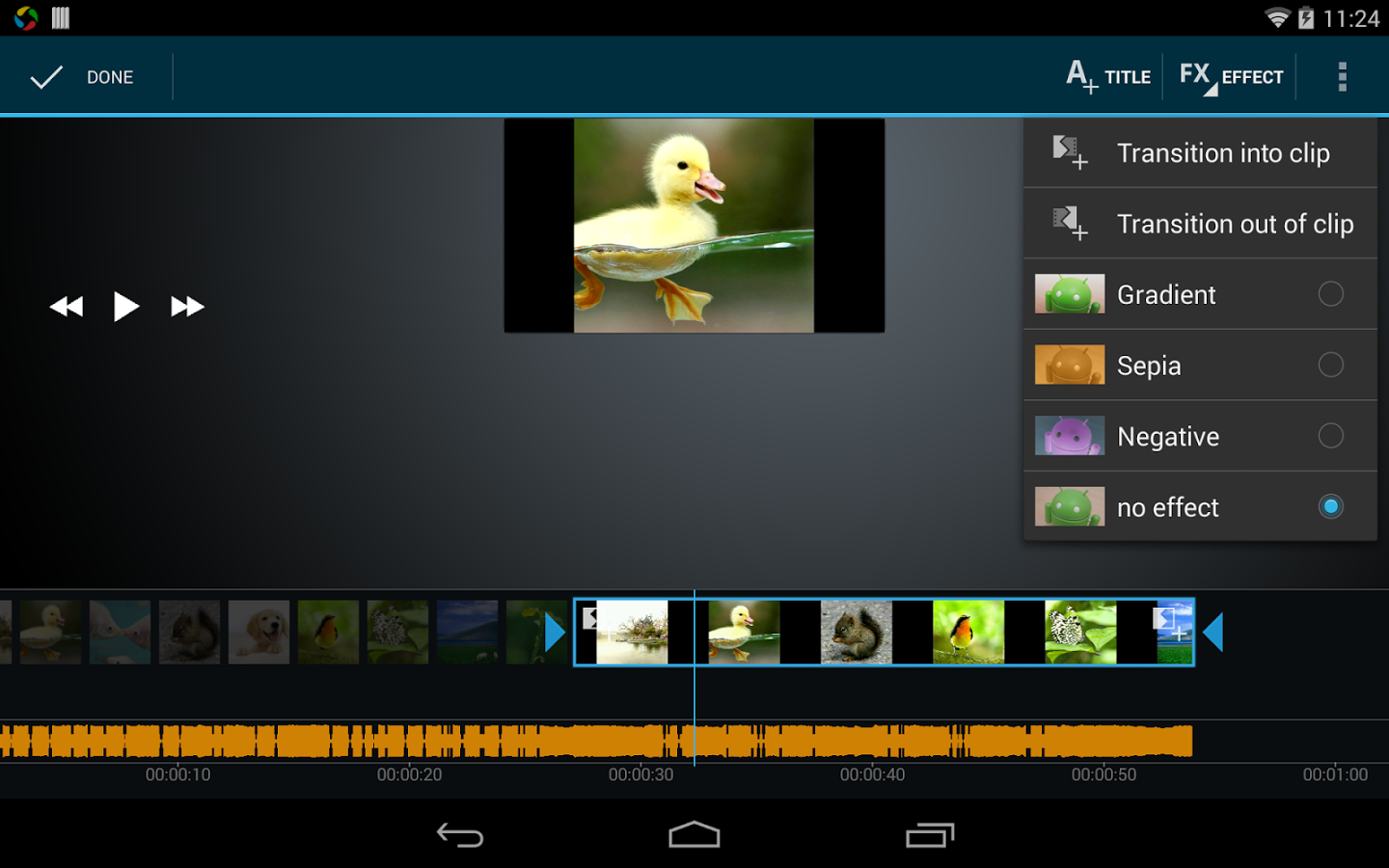
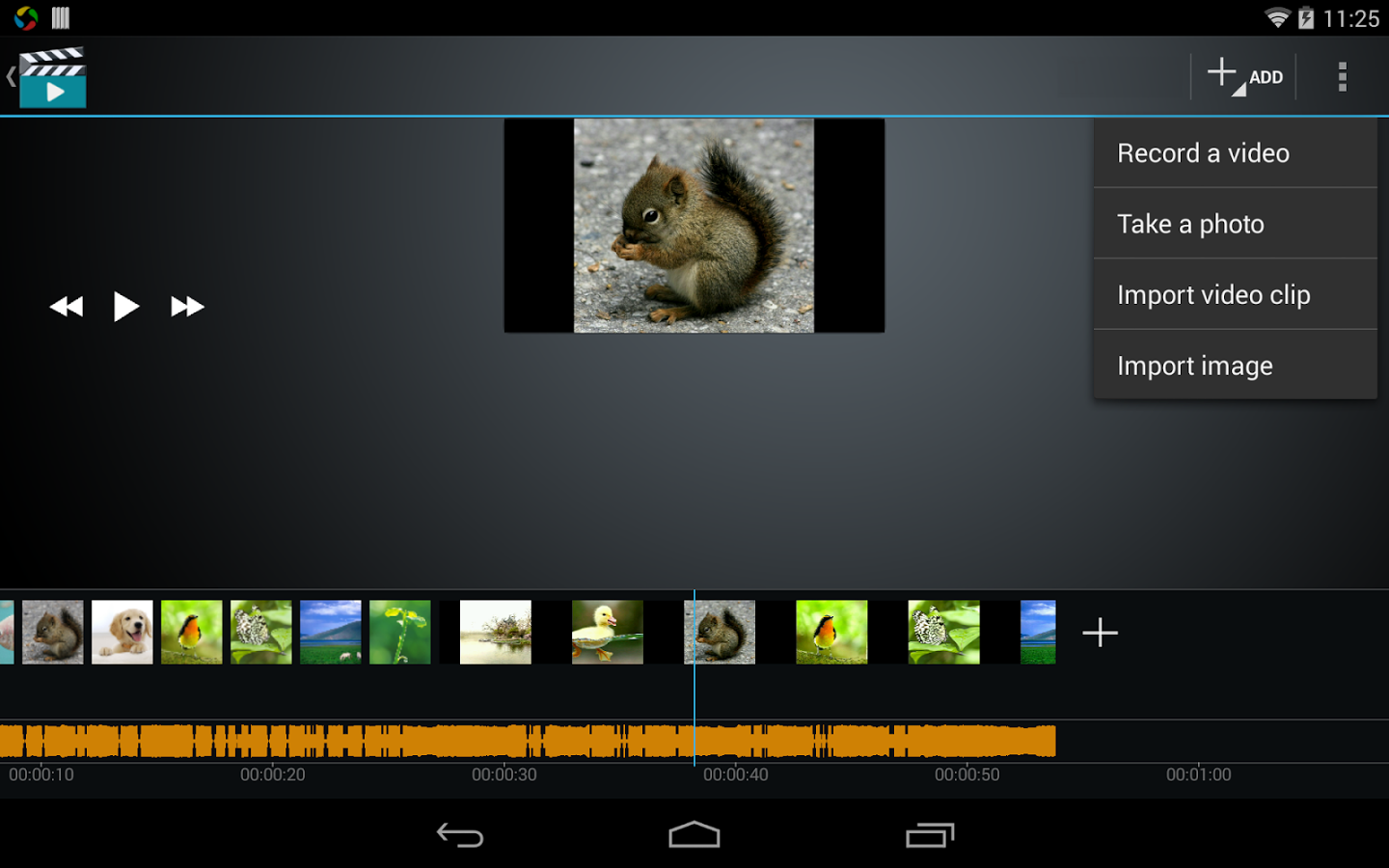
Google gave an app called “Movie Edit” back in the day, but now, this app has been excluded in most devices. So I’ve resurrected this excellent app so that you can always make your friend a clown! PS only for ARM devices.
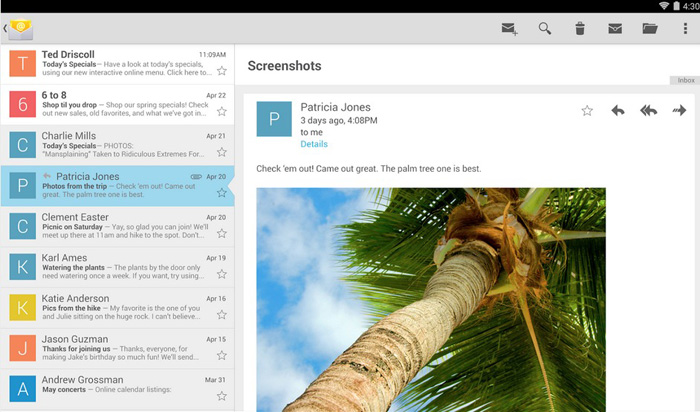
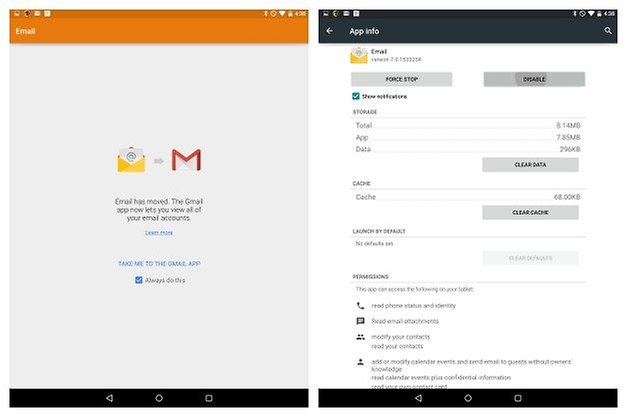
Managed to make a very stable version of the stock Email app. It’s the last usable version before Google made the transition to the GMail app. If you’d like to see the bleeding latest one (it prompts you to open the Gmail app), you can get it on this link.
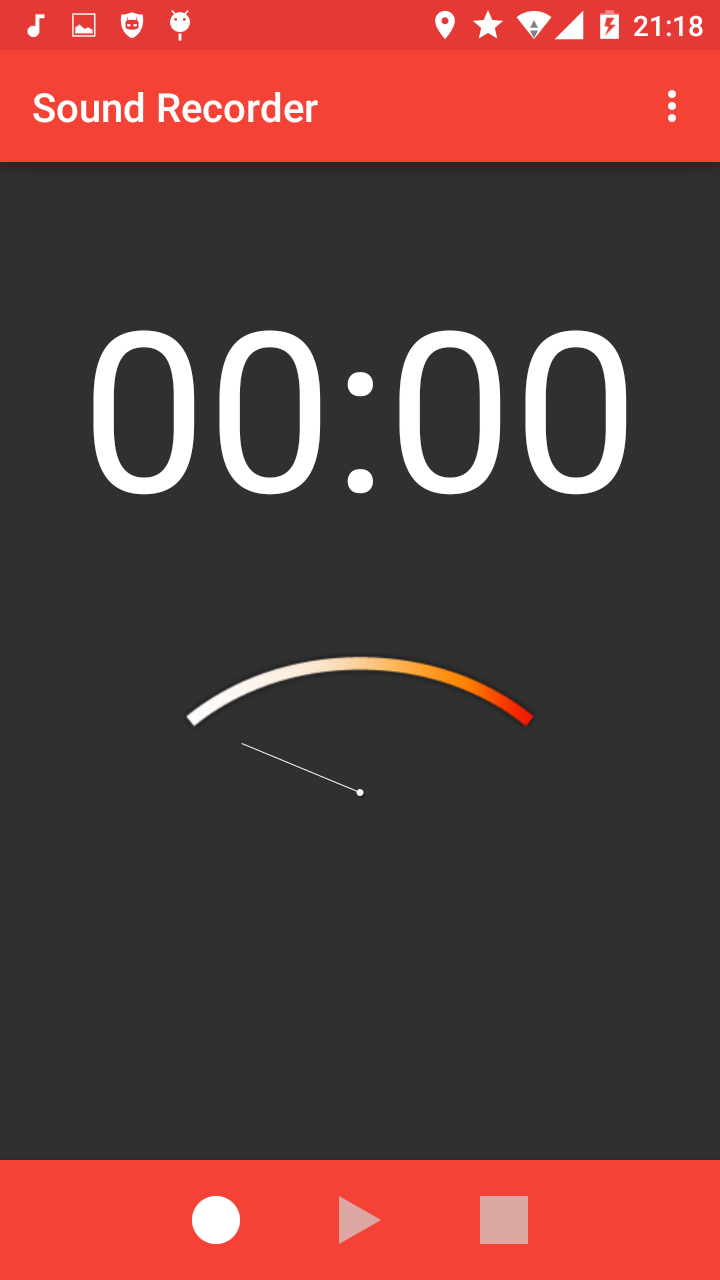
In the last stages of porting the Android Nougat Voice Recorder app for older versions. I’ve finally managed to get the Android 5.1.1 Voice Recorder app for older versions. has a selection of which format to record to!
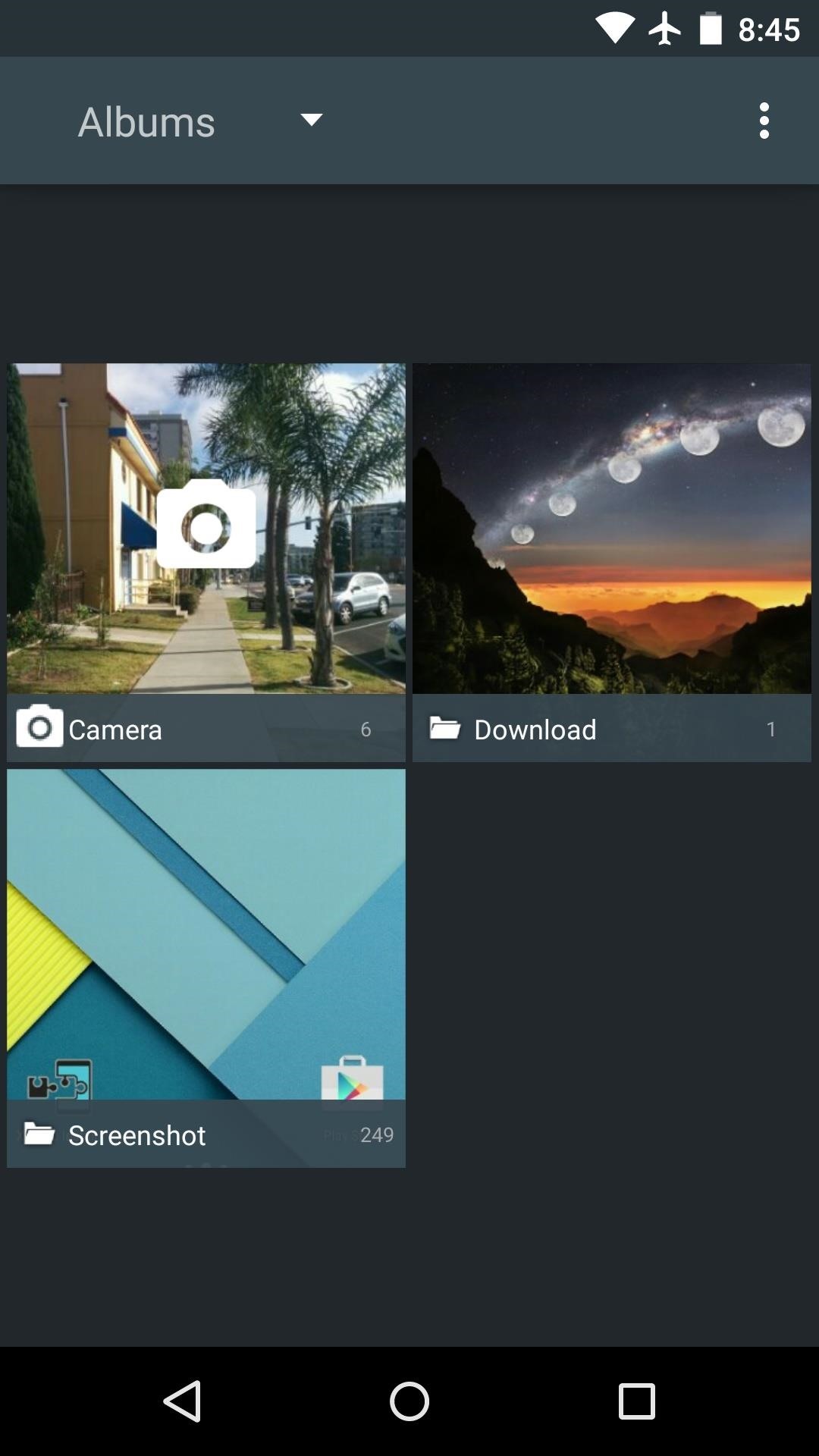
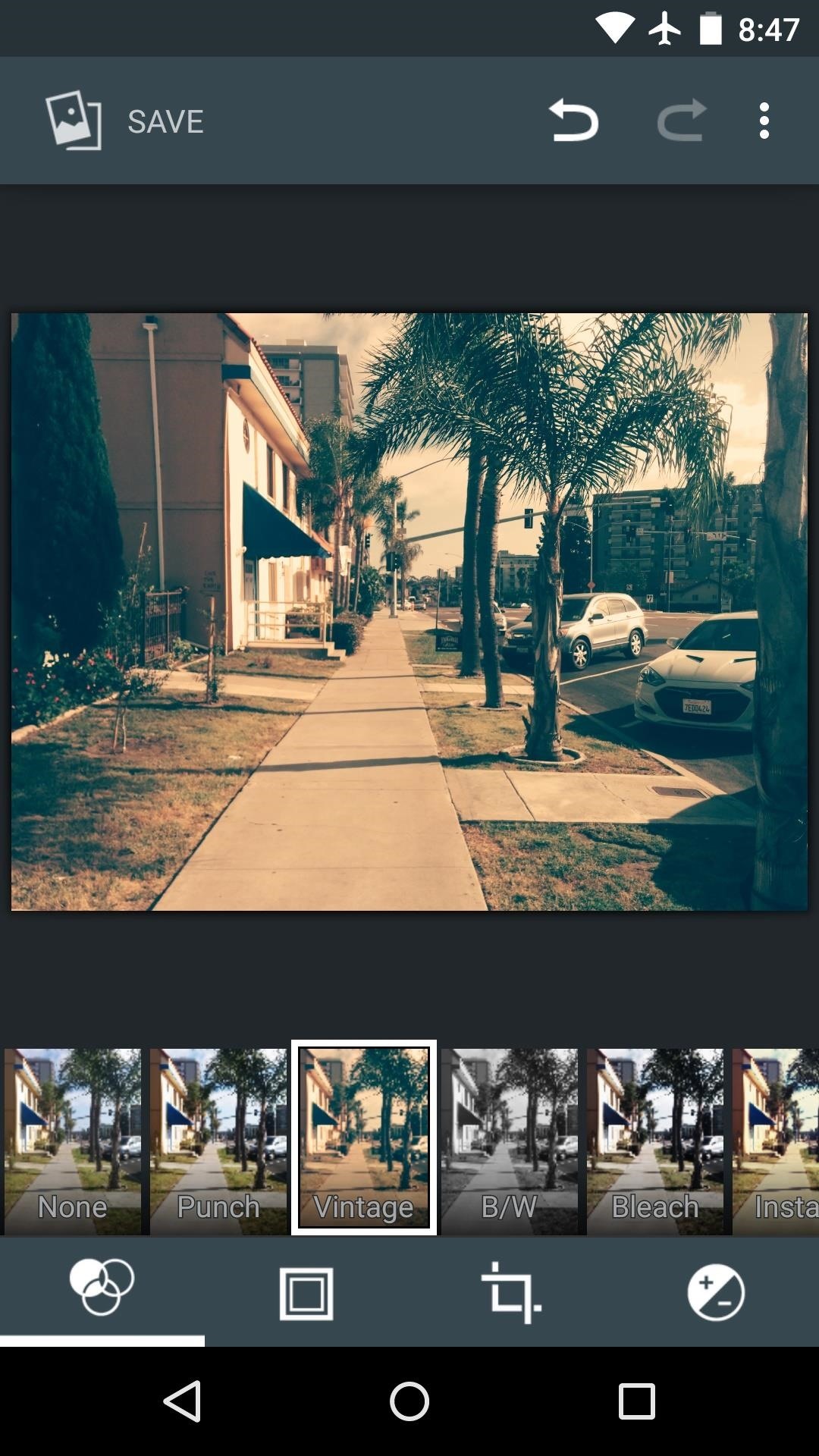
All the versions have the same gallery app. PS best to install the Universal Camera app above for optimal stability and performance. Also, I’ve provided the gallery app in CyanogenMod for Android L and up.
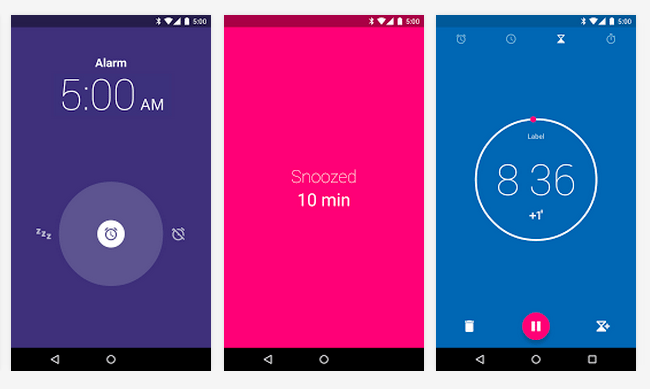
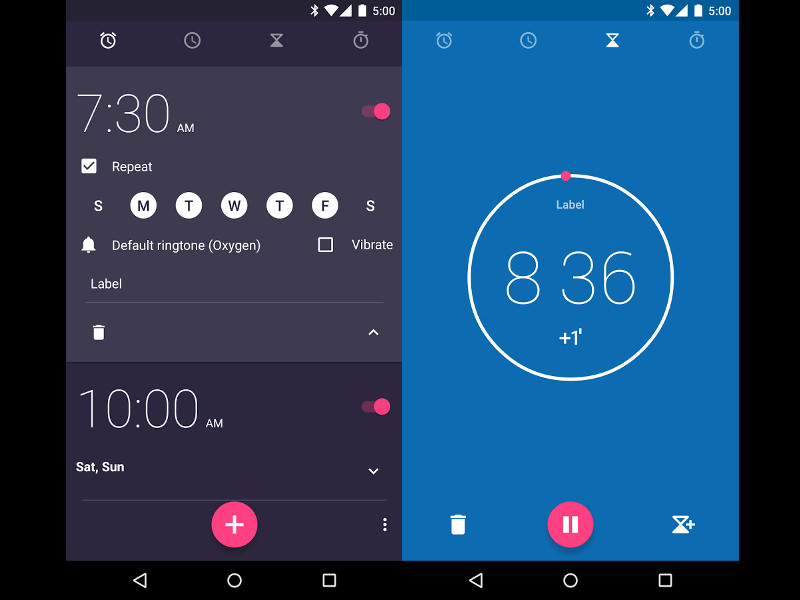
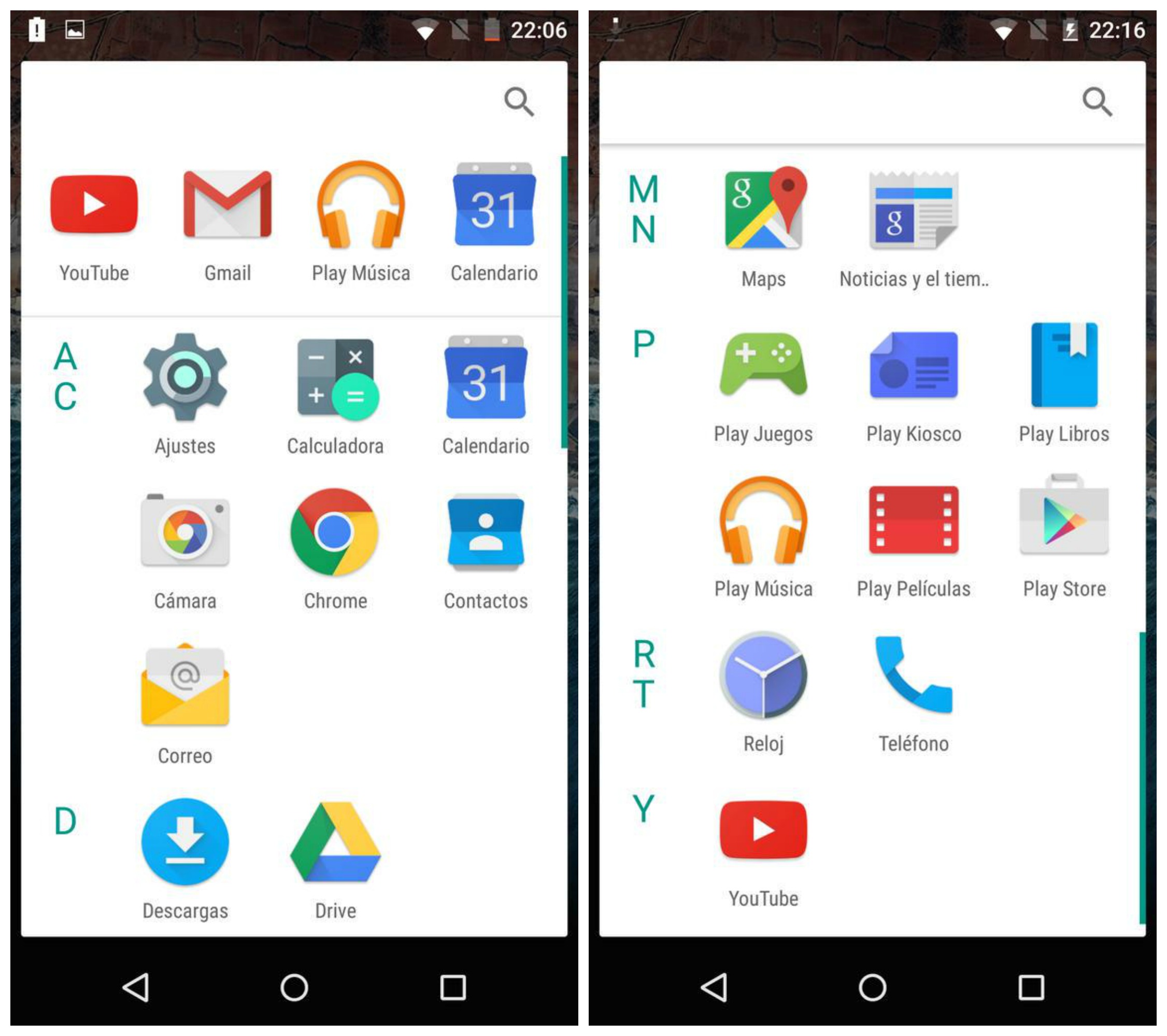
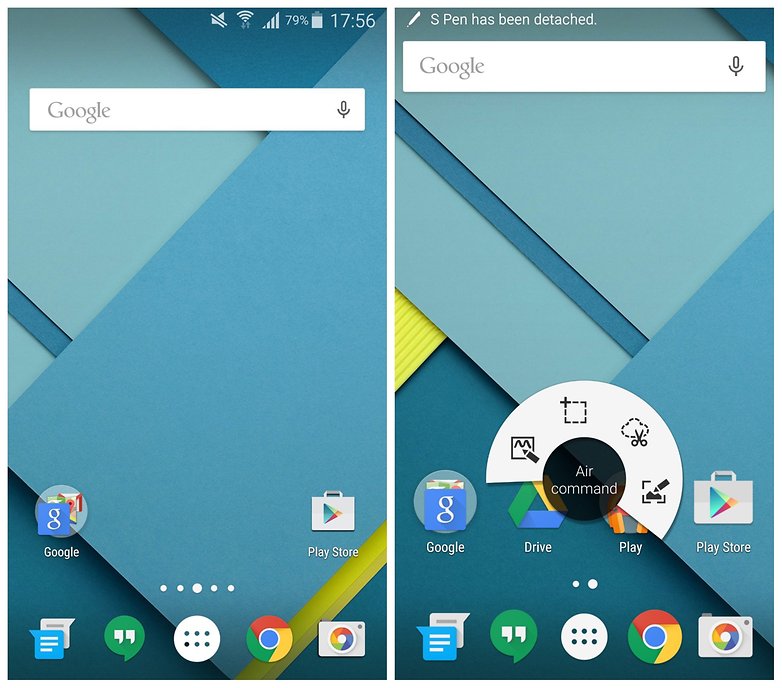
Buncha apps that will help you to make your phone look new.
LOCK SCREEN
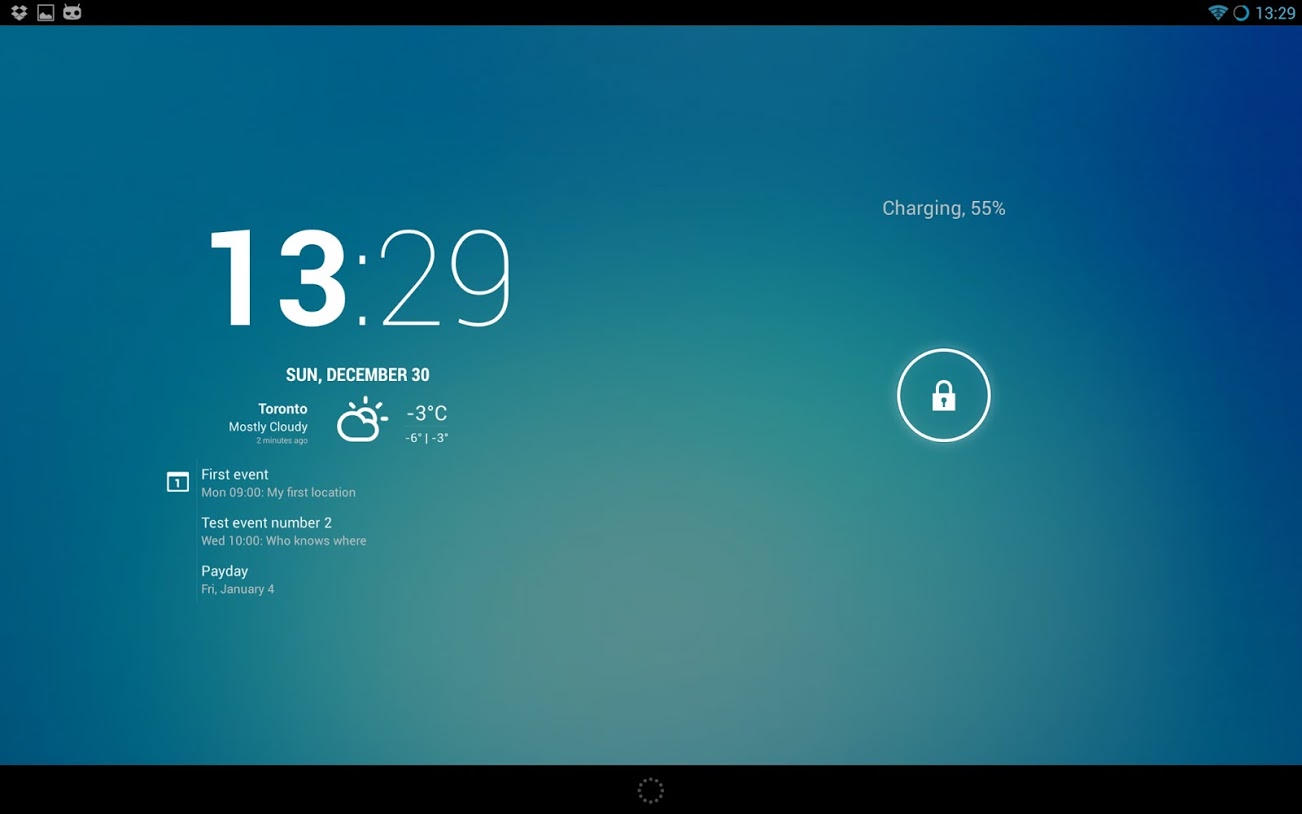
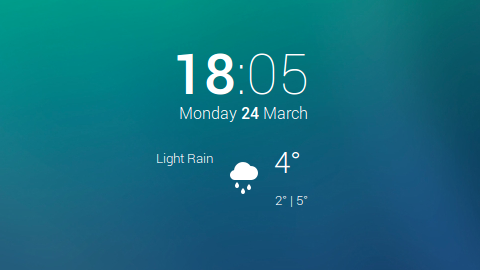
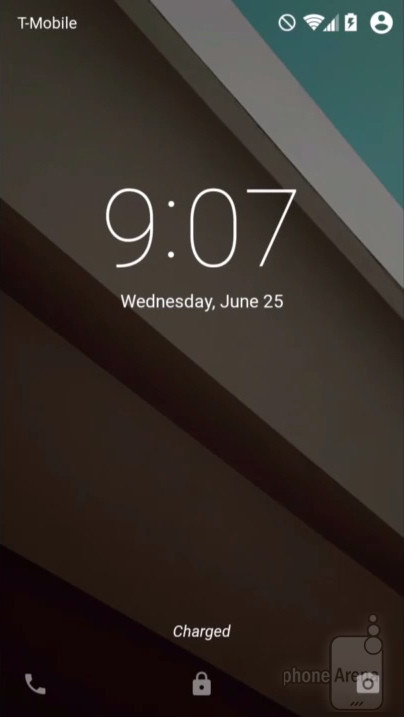
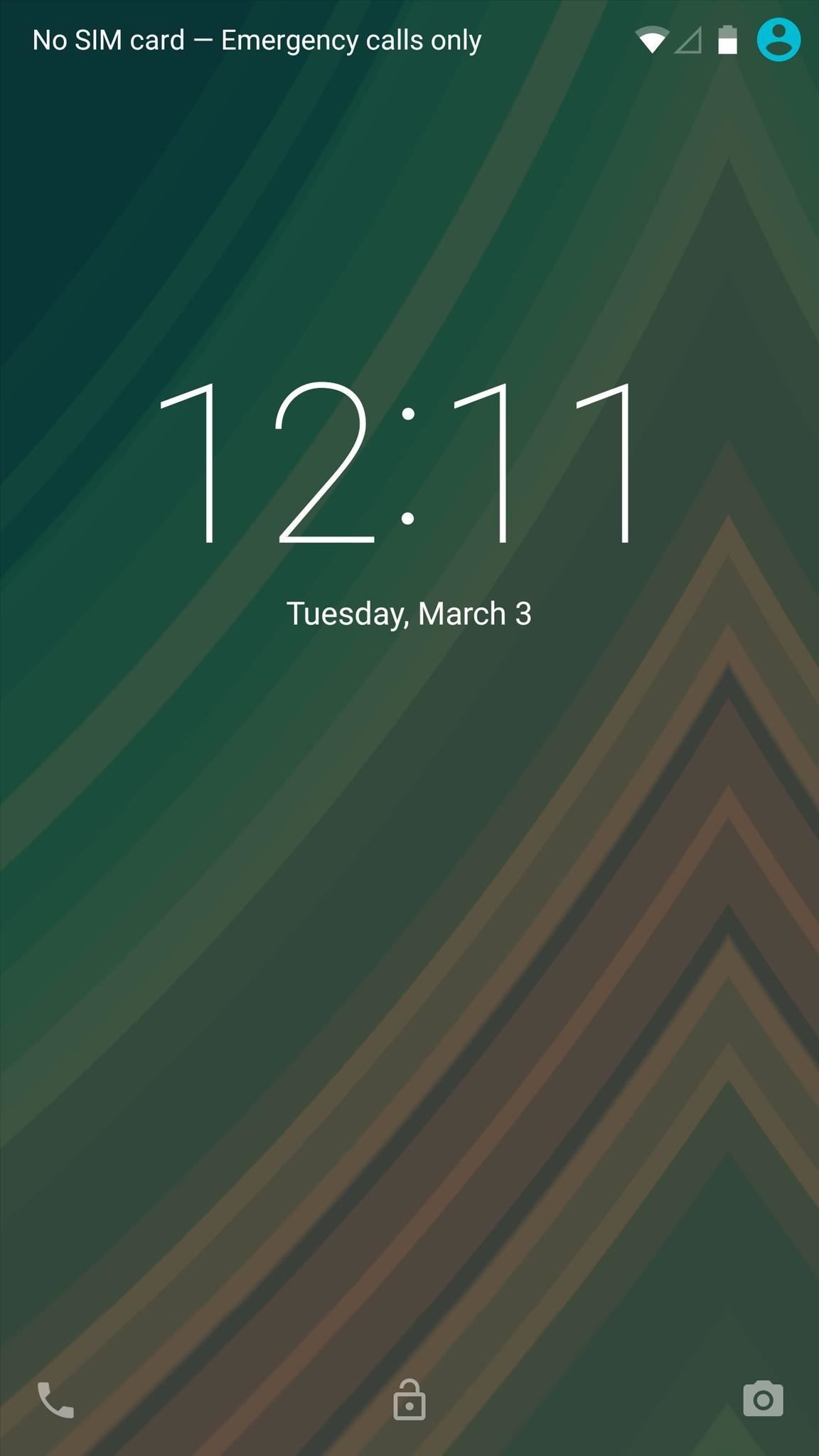
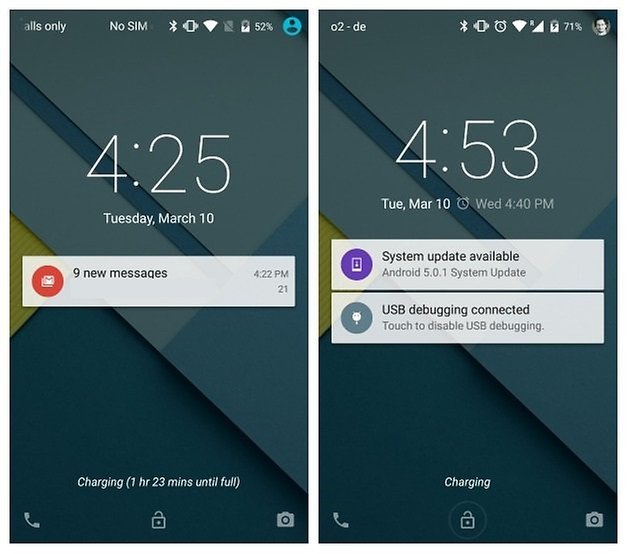
I tried to bring the Lollipop lock screen to others and here’s the result: a fully functioning, ad free, customizable lock screen that looks like Android L. I had to deeply integrate code from other apps, so, it’s not perfect. The notification on lock screen feature doesn’t work for Jellybean. Not at all like all the crap you might have found on the market.




 Help Ahoy!
You must be logged in to post a comment.